 ReelMorph
How to Make the AI Zombie Trend with Two Photos
On this page
AI Zombie Trend
Make a 15-second AI Zombie Trend video in ReelMorph. Learn photo selection, character roles, landscape framing, audio limits, and how to review your video.
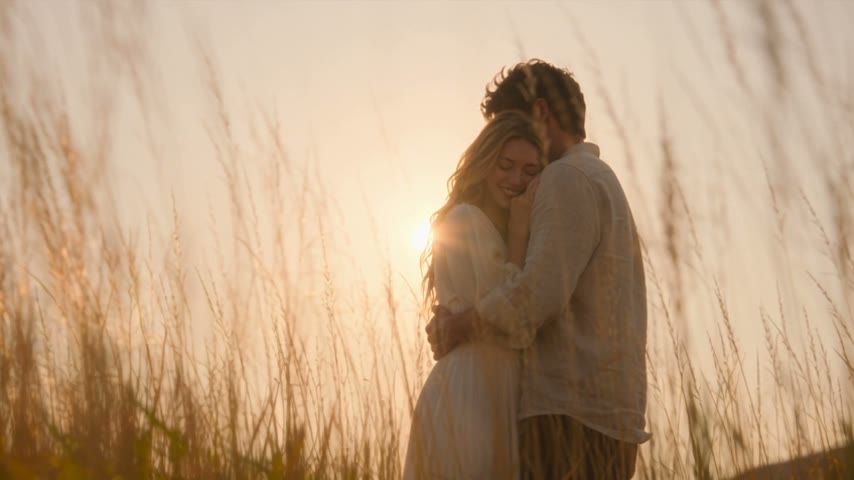
The AI Zombie Trend turns two photos into a short reunion story: one character has become a fictional zombie, while the living companion refuses to let go. ReelMorph's preset cuts from the tense encounter into a warm embrace memory. The two characters can be adults or pets. This guide walks through the two-photo workflow and the checks that matter before you share the video.
You need two permitted images, one adult or pet per image, and a signed-in account. The optional storyboard costs 5 credits per generation, and the full video is charged separately; the preview is optional. The output is fixed at 15 seconds. The default 16:9 landscape format leaves room for both characters; portrait and square formats are also available. The story description is provided.
Open the AI Zombie Trend generator →
What is the AI Zombie Trend?
This AI short-film format tells a story about loss and reunion. A familiar character has become a fictional zombie; a living companion still recognizes them; a warm memory reveals what the pair once shared. The companion's reaction and the glimpse of their past give the transformation emotional meaning. A zombie portrait alone only tells part of that story.
ReelMorph fits this story into a 15-second video. Your two photos establish the characters, while the preset description supplies the encounter, decision and memory. The pair can be two adults, an adult and a pet, or two pets.
Why does the AI Zombie Trend catch on?
The format combines suspense, emotional contrast and a personal relationship in a short clip, giving viewers reasons to keep watching and make their own version.
- An unresolved encounter creates curiosity. A changed loved one approaches, and viewers want to know whether the companion will flee, fight or recognize them.
- The emotional contrast is memorable. A threatening present connects to an affectionate past. Seeing the same character in both states gives the companion's grief a reason.
- The relationship is easy to understand without dialogue. Friends, partners and people with pets can each recognize something in the premise. Expressions and contact help the story travel across languages.
- Two photos make participation approachable. Creators can choose a relationship that matters to them and place it inside a familiar story structure. That personal choice gives different versions a reason to exist.
Decide which relationship your version is about before choosing photos. Recognizable characters and a readable ending help viewers understand the story more than extra horror decoration does.
Story breakdown: encounter, decision and memory
Use these beats to understand and review the clip. They are not a frame-accurate timing schedule:
- Encounter: establish the danger. The character from photo 1 appears transformed in a cold setting. Keep enough recognizable features to connect this character to the later memory.
- Decision: show recognition. The companion from photo 2 expresses grief and attachment. A human companion lowers a weapon without firing; a pet expresses the moment through its gaze, posture and approach.
- Contact: cut into the past. Initial contact leads into a warm scene. The cold encounter remains threatening; the affectionate embrace or nuzzle belongs in the memory, making the change read as a recollection.
- Memory: reveal the bond. Healthy appearances, natural affection and warm outdoor light show what the pair shared. Both characters should still correspond to the uploaded photos.
If the clip communicates transformation but no recognition, inspect the decision and memory. A sad soundtrack cannot supply a missing part of the story.
What to prepare before you start
- Two separate, permitted images with one adult or pet in each. Decide which character is the zombie and which is the living companion.
- A signed-in account and the credits shown in the quote. The optional storyboard is an additional purchase; the full video is charged separately.
- Your intended format: the landscape default gives the interaction room, while a vertical post may call for choosing portrait before generation.
You do not need to add zombie makeup, combine the photos into a collage or label the characters inside the images. Start with the photo choices and upload order below.
1. Choose one clear photo for each role
The upload order assigns the characters. Photo 1 is the zombie character. Photo 2 is the living companion. The roles are independent of gender. To reverse the roles, swap the photos before submitting; the generator cannot infer which person you intended from a filename.
Choose images where the face and upper body are easy to see. Leave space around the head and shoulders. Sunglasses, hands covering the face, deep shadows, and strong beauty filters make it harder to retain recognizable features. A group photo adds ambiguity, even when the intended person is in the foreground. Use a separate image for each character instead. For a pet, keep its eyes, coat markings, ears, muzzle and body outline visible.
Each upload accepts JPG, PNG, or WebP up to 10 MB. Check both previews after uploading, especially if you removed and replaced one image. Confirm that you have permission to use both people's likenesses.
Permission and provider acceptance are separate checks. A model may reject an image as containing a real person, and a realistic AI portrait can trigger the same restriction. A clear image helps the model read a face; it does not override the provider's image policy. This preset supports adult and pet combinations. Pets should retain their own species, proportions and natural movement; review the result for distorted anatomy or human features appearing on an animal.
2. Set up your 15-second generation
Open the generator, sign in when prompted, and upload the two images in the assigned order. Then review the available settings before generating an optional preview or the full video:
- Model: choose from the Seedance options shown in the tool. Models can differ in price and acceptance rules; generated results can vary.
- Aspect ratio: start with 16:9 to leave more horizontal room for both characters. Choose 9:16 for a vertical composition or 1:1 for square delivery, then inspect how both people fit in the result.
- Resolution: choose an available resolution for your selected model. A higher resolution does not fix swapped roles or a missed story transition.
- Credits: use the current on-screen quote. Each three-panel preview costs 5 credits, charged separately from the full video. The video quote changes with model and resolution.
The duration remains 15 seconds. That is the length of the finished video, not a promise about processing time. Queue and generation times vary. Once submitted, follow the task status rather than repeatedly starting new jobs while the first one is still running.
Step 1: Upload and check both roles
Open the generator, add photo 1 and photo 2, and check the zombie and companion assignments. Confirm image permissions, choose the format, model and resolution, then review the quote. If you want a storyboard, settle the photos and format before generating it.
Step 2: Decide whether to preview the storyboard
Use the optional 5-credit preview when you want to inspect recognition, makeup and emotion first. It creates one 1K portrait composite with three stacked panels: the zombie threat, the companion's tearful decision and a warm embrace memory. 1K applies to the entire image, not each panel. Leave the option unchecked to generate the video directly.
Review each panel: are the roles correct, does the transformed character correspond to the healthy one, and is the difference between grief and affection readable? For pets, check species and proportions too. A still preview helps assess appearance and emotion; it cannot validate movement, sound or the timing of the cut.
Step 3: Confirm the preview and generate the full video
If the preview is suitable, check the confirmation box and submit using the full-video quote. If the roles or appearance are wrong, reconsider the photos. Use “Clear and start over” when you need to replace them. Clearing does not automatically generate an image; another preview is a new paid generation.
Each preview costs 5 credits, with confirmed failures refunded. Retries are charged as new generations, and previews remain valid for at most 22 hours. The full video is charged separately. Both workflows follow the encounter, decision and warm-memory story, and both still require reviewing the complete video.
Making a pet version: a person and a dog
To make the dog the zombie character and the adult the living companion, put the dog's individual photo in slot 1 and the adult's in slot 2. Reverse the uploads for the opposite story. The role comes from the slot, not the character's size.
Choose a pet photo that shows its eyes, ears, muzzle, coat markings and body outline. An extreme nose close-up or a photo of several people holding the animal makes the individual character harder to read. A small pet should occupy enough of the image to show useful detail.
In the preview, check that the roles are distinct and the pet retains its species and proportions. A warm memory might show a person crouching beside a pet, a gentle nuzzle or two animals resting close together. It should not require human hands, upright human posture or a weapon for the animal. In the video, inspect paw placement and contact: a still preview cannot establish natural motion.
Prompt essentials: define the relationship and the change
This fixed effect supplies the story description; there is no prompt box to fill in. The original example below explains the storytelling principles and can help organize ideas in tools that accept custom descriptions. It is not an extra step required by this generator.
Establish roles and a sequence
“Emotional, cinematic, zombie, embrace” gives a list of labels without saying who changes or who makes a choice. Organize the idea as relationship → present situation → companion's reaction → remembered bond, then add lighting, visibility and non-graphic styling.
An adult encounters an old friend who has become a fictional zombie. Recognition brings grief and reluctance to leave. After a tense approach, cut to a warm memory of the healthy friends embracing. Keep both characters recognizable and tell the story through expression and movement, without graphic injury.
Separate what changes from what stays consistent
Makeup, emotion and lighting change across the story. Identity, species and the relationship should remain coherent. For pets, describe an appropriate nuzzle or resting contact instead of assigning the same human embrace to every pair.
Avoid conflicting directions
An entirely static pose, a running approach and an unbroken face close-up cannot all describe the same moment. Likewise, constant laughter would conflict with grief. Give the short film one clear emotional progression. On this page, your practical controls are the photos, their order and generation settings; use those when troubleshooting.
3. Review the story, not just the first frame
Play the whole video once for the emotion, then again for continuity. The intended contrast is between a tense, cold room and a golden outdoor memory. The warm scene shows the relationship before the fictional transformation; it is not meant to suggest an instant cure.
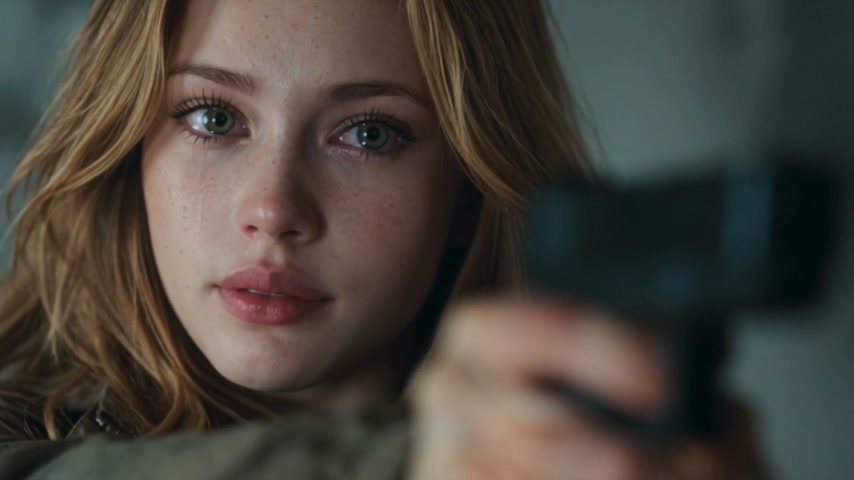
Example frame: the companion's expression establishes the tension. This is a frame from the supplied sample, not a result generated from your photos.
Check these details before downloading a version to share:
- Identity: photo 1 should remain recognizable as the zombie and as the healthy person in the memory. Photo 2 should remain the companion across the cut.
- Decision: the living companion recognizes the changed loved one, while the zombie remains threatening in the cold scene. A human companion lowers the weapon without firing; an animal companion has no weapon. Affection belongs to the warm memory, with non-graphic styling throughout.
- Movement: look at hands or paws, shoulders, balance and contact. An embrace or nuzzle should fit each character’s species and size, without floating or human hands appearing on a pet.
- Transition: look for a clear change into the warm memory. The story instructions guide a multi-shot generation, so exact timing and shot sequence can vary. After the embrace, look for the memory montage: a field embrace, affectionate close-up, reverse shot among flowers and wide sunset ending.
- Framing: keep both faces visible. In a vertical result, inspect the edges during movement; a portrait composition has less horizontal space for two people.
Example frame: the healthy pair in the warm memory. Check that your generated version keeps the same two identities across this change.
If the identities are wrong, check the upload order and replace an unclear source photo before another attempt. If a shot is awkward despite suitable inputs, another generation may differ, but improvement is not guaranteed. Review its quote as a new job.
4. Check the soundtrack separately
The Zombie preset requests original cinematic music and environmental sound, with no dialogue. It does not promise the song heard in another creator's post. A provider can still reject the generated audio for a possible copyright match, even when the instructions ask for original music.
After a successful generation, you can add music you have rights to in a video editor. Align a musical change with the actual transition in your finished clip rather than assuming the cut happens at a fixed second. Listen for overlapping tracks and lower or remove the existing music as needed.
Adding an audio track afterward does not animate the lips. It can align the musical mood or a beat with an action, but cannot make arbitrary speech or singing match existing mouth movements. This story is intended to work without spoken lines. ReelMorph's current Zombie interface does not offer a separate silent-generation or post-generation music-mixing control.
5. Read the failure reason before trying again
A failed task shows a warning and a localized explanation. When available, the provider's message appears alongside it. Use that reason to choose the next action:
- The image may contain a real person: review the selected provider's accepted inputs. An AI-generated realistic face may also be rejected. Do not keep resubmitting the same image expecting permission alone to change the outcome.
- Output audio may be related to copyright restrictions: this concerns the generated soundtrack. Adding music later cannot recover a video that the provider never delivered. Keep the task details if you need support.
- Upload, network, or temporary provider error: check the image format and size when relevant, then check the task's current status. A connection error alone does not establish that generation failed.
Failed videos do not appear in My Works. If you still have the task link, open it to read the reason. For a charge question or a task that stays unresolved, contact support with the task ID and error text; do not send passwords or API keys.
Frequently asked questions
Can I use one photo of a couple?
This workflow expects two separate images, one adult or pet per upload. Prepare individual photos so the roles are unambiguous.
Do I need a special zombie portrait?
No. The preset requests the fictional appearance. Use a clear permitted source image; adding gore or heavily obscuring the face makes it less suitable for this non-graphic story.
Will a vertical video look like the landscape sample?
It follows the same intended story, but the composition can change. Check both faces and the embrace in the output. For more horizontal room during the interaction, keep 16:9.
Is every result identical to the example?
No. Faces, clothing, movement, audio, and edit timing can vary. The example illustrates the intended story; generated results can differ.
Make your first version
Start with two clear, permitted portraits and the correct role order. Keep the landscape default if you want room for the pair, review the current quote, and inspect the complete result before sharing. For human subjects, obtain their agreement to the final use and identify it as AI-generated when you publish it.
Create an AI Zombie Trend video →