 ReelMorph
How to Make the Raindance AI Trend with Two Photos
On this page
Raindance AI Trend
Recreate the Raindance AI video format with two photos: plan the shots, generate a silent video, review continuity and add authorized sound before publishing.
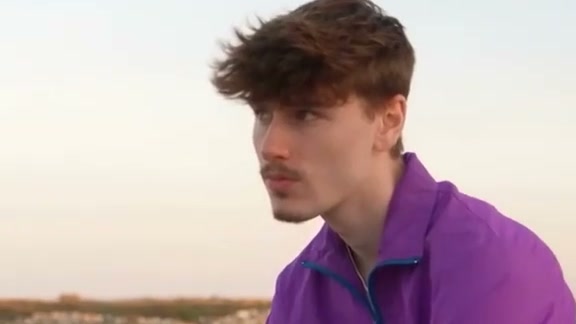
The Raindance AI format places two chosen people into a warm seaside performance: one character is usually established on or beside a wooden pier, while the other takes the foreground performance role. This tutorial explains how to recreate that visual form with any suitable image-to-video system and video editor. The workflow generates silent picture first, then adds only authorized sound during editing. It does not require ReelMorph or a private preset.
What is the Raindance AI Trend?
The traceable source is “Raindance” by Dave featuring Tems. Universal Music Canada's official release note identifies the artists, calls the release the official music video, and says it was filmed in Lagos, Nigeria. The later AI format is a community-made recasting of the video's seaside visual language; it is not the official video and should not be presented as an artist-endorsed effect.
The name does not mean “dance in a rainstorm.” The recognizable ingredients are open water, a wooden pier, warm light, two alternating performance roles, and camera changes between an environmental view and a closer foreground performance.
Why does the format spread?
Its appeal can be explained by visible storytelling choices rather than unsupported popularity claims:
- Two roles invite personal casting. Friends, partners or fictional characters can occupy a clear pair of parts.
- The location reads quickly. Water, horizon and pier establish a cinematic place in the first seconds.
- Alternating scale adds rhythm. Wide shots explain the relationship between both people; closer shots make one performance feel immediate.
- Recasting creates contrast. The same composition feels different when familiar or unexpected people take the roles.
These qualities make the format easy to understand, but they do not guarantee reach or engagement.
Break down the seaside performance
Before opening a generator, write a five-beat plan. Treat this as a flexible sequence, not a promise of exact timing:
- Establish the coast. Show the pier, calm water, horizon and both characters' positions.
- Introduce role A. Hold a readable medium-wide view of the seated or pier-side performer.
- Move to role B. Bring the foreground performer closer without losing the same location and light.
- Alternate reactions and gestures. Return to role A, then role B, while preserving clothes, direction of light and screen position.
- Resolve in a shared environment. Finish with open water or a wider composition that reconnects the pair.
If your tool struggles with multiple shots in one request, make three or four short clips for these beats and edit them together. This gives more control than repeatedly asking a single generation to repair a late identity swap.
Prepare two people and a visual plan
Use two separate, permitted photos, one adult per image. Keep each face and upper body visible. Similar face size and lighting make it easier to balance the pair. Avoid sunglasses, hands over the face, crowds, strong beauty filters, back-facing poses and heavily cropped heads.
Assign the roles before generation:
- Person A: seated or positioned along the pier; readable in wider shots.
- Person B: foreground performance role; readable in closer shots.
Create a simple storyboard using your own sketches or written descriptions. You may watch an authorized official source to understand the visual structure, but do not redistribute the commercial video, copy logos, or assume that access to a video grants reuse rights for its footage or soundtrack.
Choose the delivery format now. A vertical 9:16 canvas suits short-form feeds and the example on this page. A 16:9 canvas gives more room for the pier and both people. Generate at the final aspect ratio when possible; aggressive cropping can remove a face or destroy the relationship between the performers.
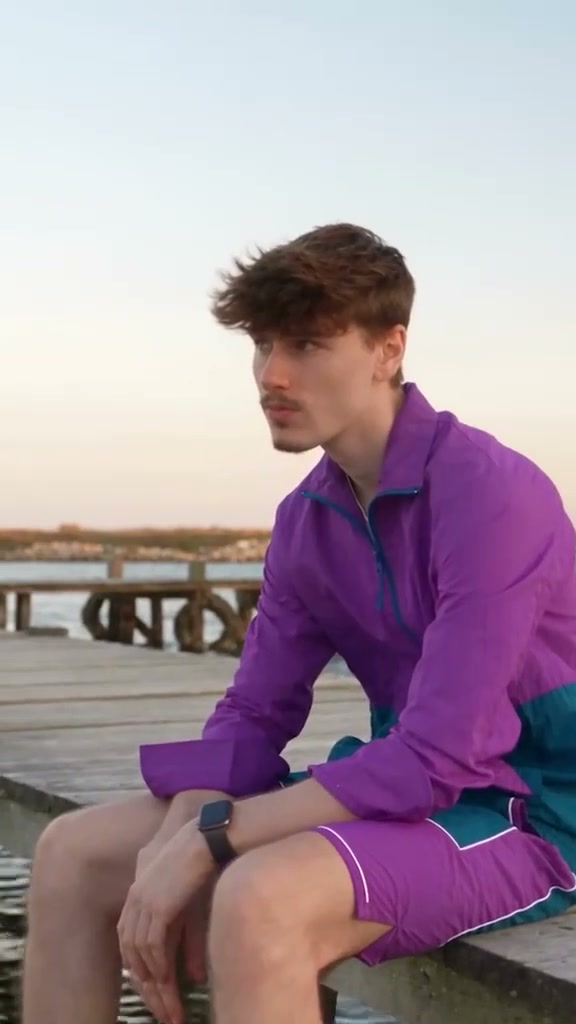
Example-video frame used to study the pier composition. It is not a guaranteed result from two uploaded photos.
Write a two-role prompt
A useful prompt separates identity, roles, shot order, continuity, camera, the silent-output requirement and negative constraints. Do not just list “cinematic, beach, Raindance.” State who does what and what must remain stable.
Use this tool-independent example as a starting point, then rewrite it for your own people and shots:
Create a warm, photorealistic seaside performance with two distinct adults. Person A remains the pier-side seated performer; person B remains the foreground performer. Begin with a wide view of the wooden pier, calm open water and sunset horizon, then alternate readable medium shots of A and closer performance shots of B before ending in the same coastal environment. Preserve each face, hairstyle, clothing and body proportions across every shot. Keep the light direction, pier geometry, waterline and screen positions consistent. Use restrained natural gestures and smooth camera movement. Generate silent picture with no audio track. No identity swaps, duplicate faces, extra lead performers, distorted hands, changing outfits, text, logos, watermarks, music, speech, singing or sound effects.
For separate clips, shorten the prompt to one beat at a time while repeating the same identity and continuity block. Save a reference still from the first approved clip and use it only if your chosen tool supports lawful image reference and you have permission for all people shown.
Generate in one pass or several clips
Option A: one continuous generation
Use this when the model reliably supports two identity images and multi-shot direction. Ask for the full sequence, keep the camera plan simple, and review the entire result before accepting it. A single run is fast, but an identity error near the end may require a complete retry.
Option B: several short clips
Generate the establishing shot, role A, role B and final shared environment separately. Reuse the same role labels, wardrobe description, light direction, aspect ratio and frame rate. Cut on a body movement or camera movement so the edit feels intentional. This strategy is usually easier to troubleshoot, although matching faces and color between clips still takes work.
Do not submit the same job repeatedly when its status is unknown. First check whether the tool created a task or charged a generation. Every deliberate retry should be treated as a new attempt with its own cost.
Review identity and continuity
Watch once at normal speed, then inspect shot changes frame by frame:
- Person A never becomes person B, and neither face appears on a background figure.
- Hair, clothing, apparent age and body proportions stay consistent.
- Hands meet props or the body naturally; fingers do not merge.
- Pier boards, railings, waterline and horizon retain believable geometry.
- Light stays warm and comes from a compatible direction.
- The camera can move, but neither person teleports between incompatible positions.
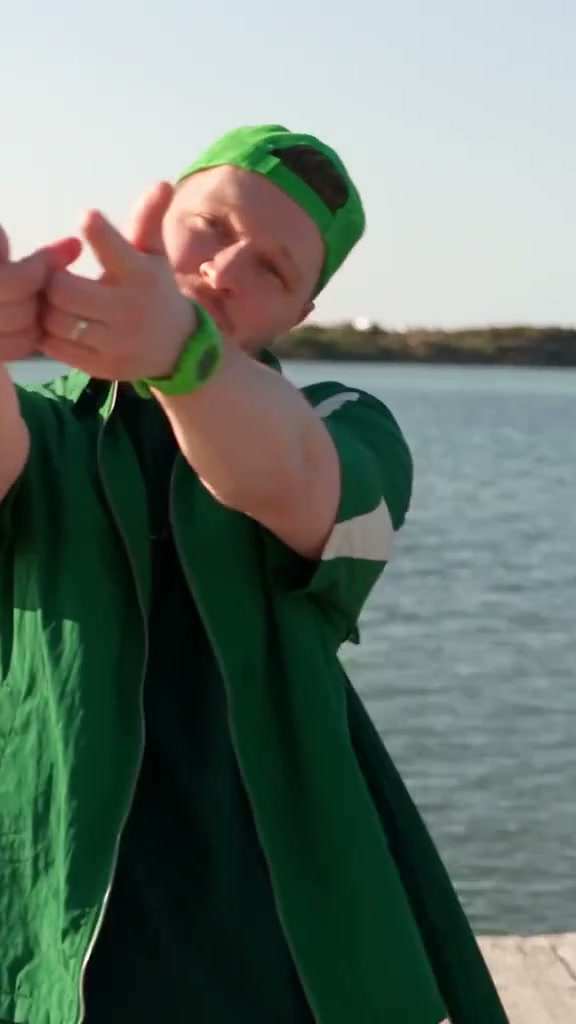
Example-video frame used to check the foreground role. A real generation must still be reviewed for identity, hands and background continuity.
Edit, add licensed sound and publish
Place the strongest establishing shot first, then alternate the two roles. Trim pauses and cut when a gesture, head turn or camera motion can carry the viewer into the next shot. Apply one restrained color pass so skin tones, sky and water feel related; do not use heavy grading to hide broken faces or hands.
Start from the silent export and build sound separately. Use original ambience, licensed music or a platform's sound library only when the track is available to your account and permitted for the intended use. Do not copy the commercial recording from another source or imitate Dave or Tems. Adding music after generation can align a beat with a cut, but it cannot repair mouth movement or create accurate lip sync.
Export at the platform's recommended dimensions. If you add authorized audio, watch the combined file from start to finish; also check text-safe areas if you add a disclosure label.
Common failures and fixes
- The two faces swap: strengthen role labels, generate shorter clips, and repeat wardrobe and screen-position constraints.
- A third lead appears: request exactly two principal performers and make background people anonymous or absent.
- The pier changes shape: simplify camera movement and repeat the same railings, board direction, horizon and waterline.
- Hands distort: reduce complex hand choreography, use medium shots, or cut before the broken contact.
- Clothing changes: describe visible garments once and repeat that continuity block in every clip.
- The scene becomes rainy: explicitly request clear warm coastal light and say the title is not a weather instruction.
- The download has no sound: this is the intended output. Add an authorized track after downloading if your publishing plan needs audio.
Rights and AI disclosure
Obtain permission from every recognizable person whose photo you use. Do not make a deceptive endorsement, fabricate a sensitive event, or imply that the artists, label or original production approved your version. The official video and song remain protected works; recreating a general scene format does not give you rights to reuse footage, lyrics, logos, performer likenesses or the commercial recording.
Label the result as AI-generated where required by law, platform rules or audience context. Keep source files and consent records, and review the final output with the people depicted before publishing it.
Frequently asked questions
Does Raindance AI mean dancing in the rain?
No. The recognizable format is a warm seaside and pier performance. The name comes from the song title.
Can I make it from one couple photo?
Two separate images are more reliable because they assign one identity to each role. If a tool accepts a group photo, crop permitted individual references first rather than making the model guess.
Do I need the original song?
No. The visual structure works without the original recording. Generate or export silent picture, then add only audio you are authorized to use if the publishing platform makes it available to your account.
Should I generate one long video or several short ones?
Use one pass if your system preserves two identities across multiple shots. Use several clips when identity or scene continuity breaks; the edit gives you more control.
Optional preset shortcut
The workflow above works independently of ReelMorph. If you prefer a fixed two-photo interface, the optional preset assigns photo 1 to the pier role and photo 2 to the foreground role, then shows a live credit quote. It creates a fixed 15-second silent video, so any authorized sound must be added separately after download. It remains a shortcut, not a requirement for this tutorial.
Open the optional Raindance AI preset →