 ReelMorph
How to Make the Bulin 47 AI Trend from One Photo
On this page
Bulin 47 AI Trend
Create a silent 15-second Bulin 47 AI Trend video from one photo, then add the official original sound on TikTok. Learn photo tips, timing checks, and fixes.
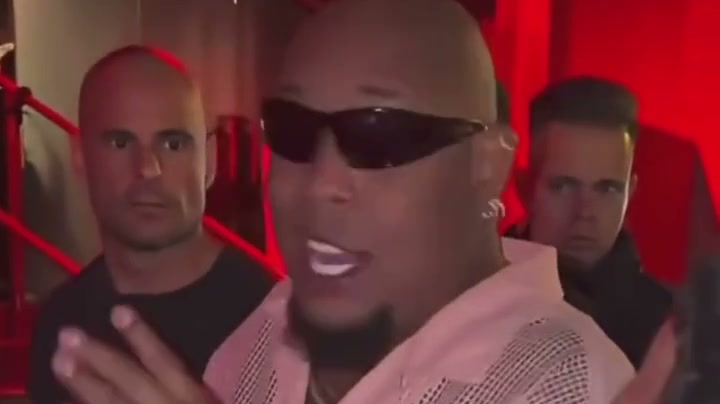
To make the Bulin 47 AI Trend in ReelMorph, upload one clear portrait, generate a silent 15-second performance, and download it. Then go to TikTok to add the official original sound before posting. The video you download from ReelMorph has no music, voice, or sound effects—even though the example clip on the tool page has sound.
Follow the steps below to choose your photo, generate and review the video, then add the sound on TikTok and adjust the timing. The scene description is provided; upload your photo and choose the settings to get started.
Open the Bulin 47 AI Trend generator →
What you can create with Bulin 47 AI Trend
This effect creates a street freestyle AI performance from your photo. In the original encounter described by MARCA, Dominican artist Bulin 47 responded to creator Kevin Wai's speaker-backed performance outside a restaurant in Spain. AI interpretations draw creative inspiration from the scene's energy.
In ReelMorph, your photo supplies appearance and clothing details. The preset scene description sets the gestures, red lighting, crowd interaction and framing. Background people, gestures and expressions can vary; review the full result before downloading.
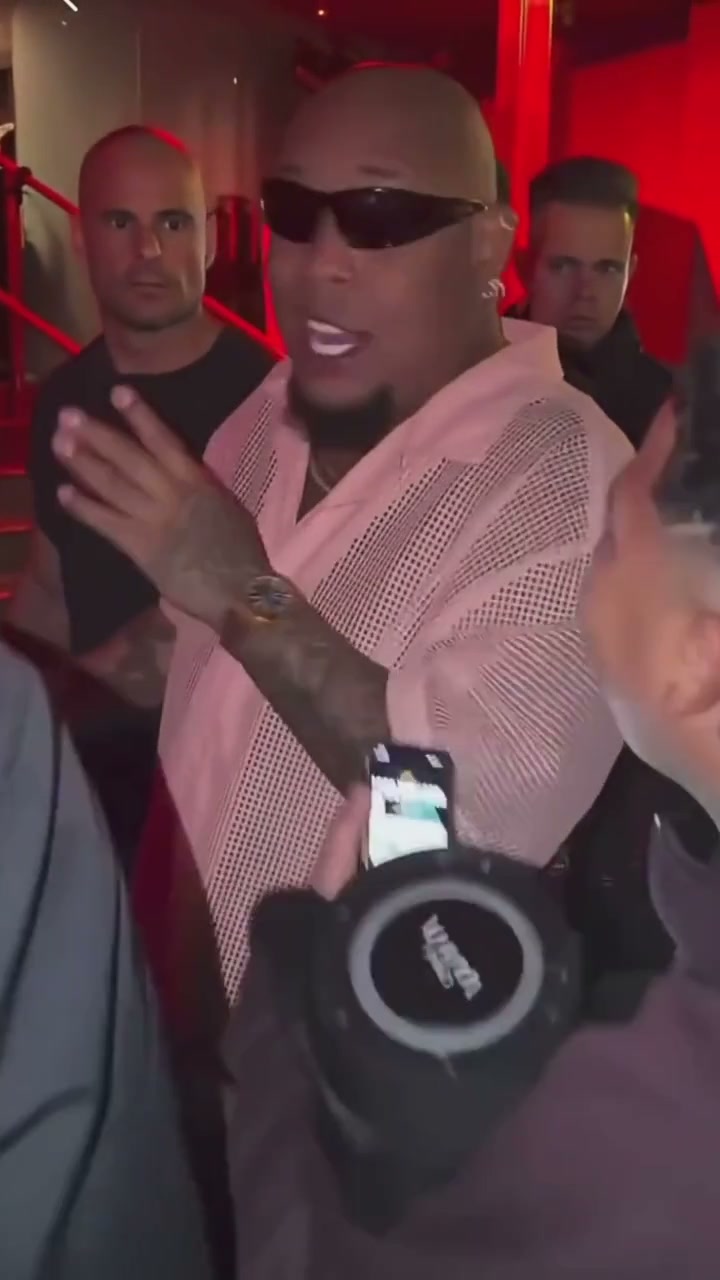
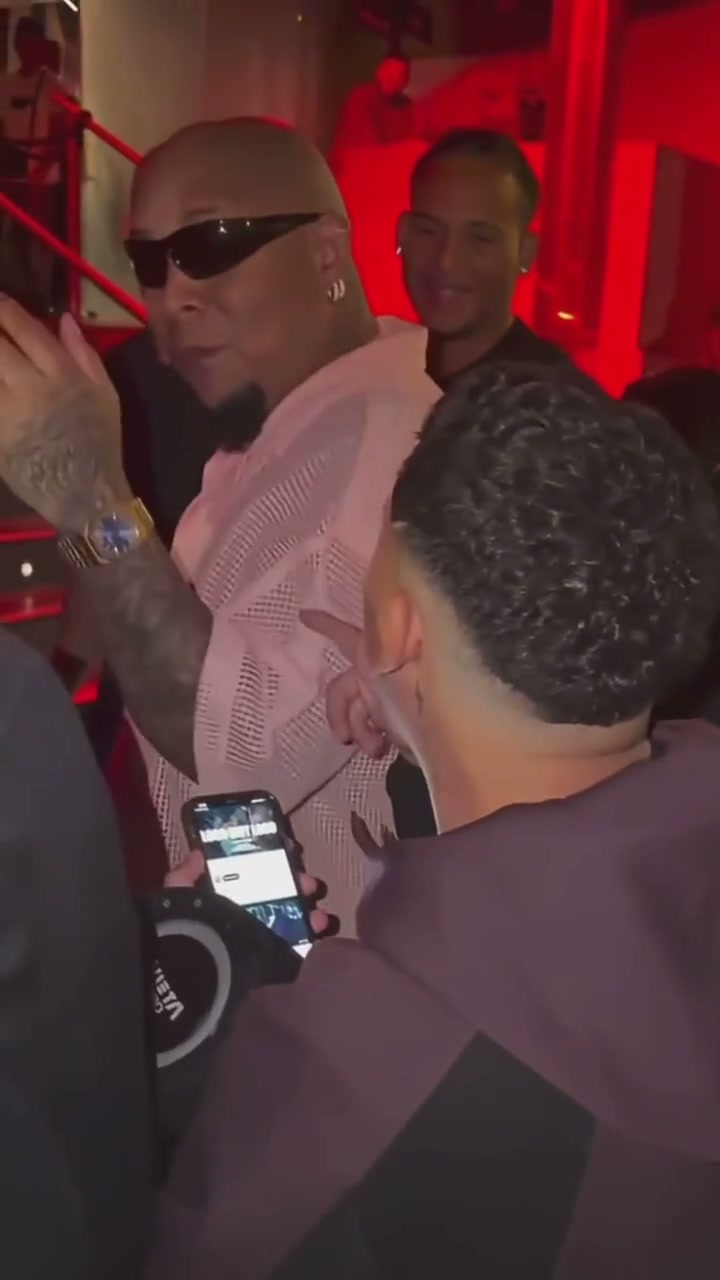
Frames from the supplied example video, not generated results from an uploaded portrait. The article cover is a crop from the same clip.
Look at the relationship between the performer and the scene. Hands pass in front of the body, phones interrupt the foreground, and people remain close to the action. Those details help distinguish this effect from a person simply talking to a fixed camera. When reviewing your output, check that gestures flow naturally and foreground phones do not hide the lead face for too long.
Why does the Bulin 47 AI Trend invite remakes?
Its appeal comes from the feeling of a live encounter: a lead gestures toward the camera, people react nearby, and red light and foreground phones place the viewer among the crowd.
Rhythm gives creators a shared starting point. A recognizable performance and sound connect different versions, while the lead's appearance, clothing and movement give viewers something to compare. The contrast between an everyday portrait and a confident performance also makes the result interesting as a personal or friends' creative project.
Crowd reactions help the scene feel like an event. Nearby faces, phones and interactions add a sense of participation. Keep the lead readable: a busy crowd that hides the performer weakens the very connection that makes the format appealing.
Reading the sample: lead, crowd and foreground
- The lead is the visual center. The face and upper body should remain readable while gestures supply rhythm. A coherent identity matters more than matching every sample pose.
- The crowd supplies a response. People establish the setting without continually blocking the lead or repeating the same face.
- Lighting creates atmosphere. Red light ties the scene together. A source photo that is already very red or dark supplies less facial detail, so start with even, natural light.
- Phones create depth. Brief occlusion suggests a spectator's view; a phone that covers the face throughout the clip makes recognition difficult. Review the moments where a phone passes the face.
Before starting: photo, format and soundtrack
Prepare one permitted adult portrait, the credits in the quote, and a phone or computer for saving the result. If you want a specific TikTok sound, listen to it and check that your account can use it before generating your picture.
For a first version, use the default 9:16 format and a clear upper-body photo. There is no need to add phones, crowds or stage filters to the image; those additions can obscure useful facial and clothing detail. Sound is added after download: the generated 15-second clip itself is silent.
1. Choose a photo with a clear face and outfit
Use one adult in a well-lit portrait or upper-body photo. Keep the face, head, and shoulders visible. A front-facing or slightly turned pose gives the model more useful identity information than a profile or a face hidden behind a hand.
Avoid adding red lighting to your source image to imitate the sample. Start with a readable face; the selected effect provides the scene description. Heavy filters, motion blur, sunglasses, and deep shadows can make the likeness harder to retain. Choose a photo with clearly visible eyes to give the model more facial detail.
Your clothing also serves as a reference. Choose the outfit you want to see in the video, keeping the neckline, shoulders, and top clearly visible. You do not need a full-body photo; AI fills in areas outside the picture.
Upload JPG, PNG, or WebP up to 10 MB and confirm that you have permission to animate the person's likeness. If an image review message appears during upload or generation, follow the explanation on the page to check or replace your photo.
2. Generate and download the silent performance
Open the Bulin 47 AI Trend generator and sign in when prompted. Upload your picture, check its preview, then review the available settings:
- Duration: fixed at 15 seconds. This describes the output length, not the processing time.
- Format: 9:16 is the default for a vertical short video. Other available ratios change the space around the performer, so review the resulting composition.
- Model and resolution: choose from the Seedance options shown in the interface. Resolution availability depends on the selected model.
- Credits: check the credit amount shown on the page before confirming generation.
Generate once and follow the task status. When the video is ready, watch it from beginning to end. Check the face during head turns, the hands during gestures, and the clothing across the whole clip. Download while the link is available. If you refresh during processing, use My Works to check the task rather than immediately creating another one.
The downloaded video is silent. Save it to your phone, then open TikTok to add the sound.
Prompt essentials: give the performance a clear focus
This page supplies the scene description, so you do not need to enter a prompt. The principles below help you choose photos, understand the sample and express a similar idea in tools that support custom descriptions.
Describe visible actions instead of only a mood
Establish one lead, then a short action sequence: look toward the camera, gesture and respond to nearby people. Too many simultaneous actions, or a spinning camera combined with a permanently frontal face, make the idea harder to follow. The crowd can react while the lead remains the focus.
An adult gives a confident freestyle performance among a street crowd, looking toward the camera before making natural rhythmic gestures and briefly interacting with nearby people. Red environmental light creates a live atmosphere. Recording phones occasionally enter the foreground while the lead's face and upper body remain visible. Keep the picture silent for music to be added later.
Check clothing detail and occlusion
If the outfit matters, choose a source photo with a visible neckline, shoulders and top. A phrase such as “premium detail” cannot supply clothing information absent from the image. This fixed effect lets you change the portrait, format and model; it does not let you direct each spectator or paste the example above into a prompt field.
3. Add the official original sound on TikTok
Find the official original sound for this performance on TikTok. Check the publishing account and listen to the recording before adding it to your video.
- Find the original performance. Search TikTok for Bulin 47 or Kevin Wai and check the artist's or original creator's official profile. Open the relevant performance and its sound page. Check the uploader and listen to the recording before saving it to Favorites, when available.
- Upload your silent clip. Tap TikTok's create button and select the video you downloaded from ReelMorph.
- Add the sound. In the editing flow, open Add sound and select the official original sound you saved. Preview it before confirming. TikTok also supports adding sound to uploaded videos; see its Sounds help page.
- Adjust and preview. If the editor offers trimming, choose the audio segment that fits your clip. Listen and watch through the full 15 seconds before posting.
Button names and sound availability can differ by app version, region, or account. If the original sound is unavailable, choose another track your account can access and that you have permission to use.
4. Adjust the sound's start to match the beat
After adding the sound, play the full video and listen for where the strong beats fall. Start with a noticeable hand gesture or head turn to find a sound starting point that fits the performance.
Move the sound's start so your chosen action lands close to the beat, then check the middle and end. If only the opening feels aligned, try another audio segment and compare how it fits the whole clip.
If the mouth movements differ from the lyrics, shifting the sound will not change the mouth animation already in the video. The tool does not automatically redo lip sync after music is added. If you experiment with playback speed, preview the full clip after each change to check that the other movements still look natural.
Try aligning one clear gesture
Find a distinct hand drop, raised arm or head turn in the silent clip and note its position. Listen for a strong beat in the track, then move the audio start until the two occur close together. Watch the entire clip afterward instead of repeatedly testing only that beat.
If the opening aligns but the middle drifts, moving the start only shifts the whole track; it cannot change the intervals between gestures. Try a different available audio segment, or use an editor to select a shorter, coherent part of the performance. Keep the original download before making edits.
A performance that feels rhythmic is different from one that visibly sings every lyric. Check both the overall rhythm and the mouth movement before choosing a version to post.
Common problems and what to check
- “My download has no sound.” The downloaded file has no audio track. Add the official original sound on TikTok.
- The face changes under the red light. Try a clearer, evenly lit source photo without strong filters or obstructions. Compare the entire performance rather than only the opening frame.
- The performer has different clothes. Try a photo with a clearly visible neckline, shoulders, and top, avoiding shadows or obstructions. Check whether the outfit changes during turns or arm movements.
- The action looks generic or the hands distort. Review the motion before adding music. A new attempt may differ, but changing the soundtrack will not repair the picture.
- The provider rejects the image. Read the specific reason shown on the page, then check or replace your photo as directed.
- A task stays unresolved. Check its status in My Works before submitting again. For support, keep the task ID and error text; a connection error alone does not confirm that generation failed.
Frequently asked questions
Does ReelMorph include the original music or Bulin 47's voice?
No. This preset produces a silent video with no music, voice, or sound effects. Add the official original sound separately on TikTok.
Why can I hear sound in the example video?
The example soundtrack demonstrates the performance atmosphere and is not included in your generated output.
What do I need to get started?
Prepare one clear portrait you have permission to use. The effect provides the scene description; upload your photo and confirm the settings and quote.
Can I specify a pet or individual background characters?
Your portrait defines the lead, and the surrounding crowd is generated with the scene. You cannot currently select a pet lead or set the appearance of individual background characters.
Is this an official Bulin 47 or TikTok product?
No. ReelMorph is independent and is not endorsed by Bulin 47, Kevin Wai, or TikTok. Describe your clip as AI-generated when sharing it, and get the subject's agreement to the final use.
Make your version
Choose one clear photo, create the silent performance, and review the whole clip. Then take it to TikTok, add the official original sound, and adjust the start before posting. Keep the video and audio checks separate so you can tell which part needs attention.
Create my silent Bulin 47 AI Trend video →
Try a football finish with Ozil AI Goal, or browse all video effects.