ReelMorph

ONE PHOTO. A PARTY PERFORMANCE.

Burning Bridges AI Trend Video Generator

Create a 15-second Burning Bridges AI Trend party video with sound from one portrait and a preset scene featuring a chandelier-lit cup performance.

Checking availability…

Generation cost: — creditsYour balance: —
Photo & credit policy

Photos are uploaded only when you generate. Provider storage is temporary.

Credits return automatically when a generation is confirmed failed.

16:9 · 15s · 720pMy videos

This is an example video. Your generated video will appear here when it is ready.

Inside the effect

What is Burning Bridges AI Trend?

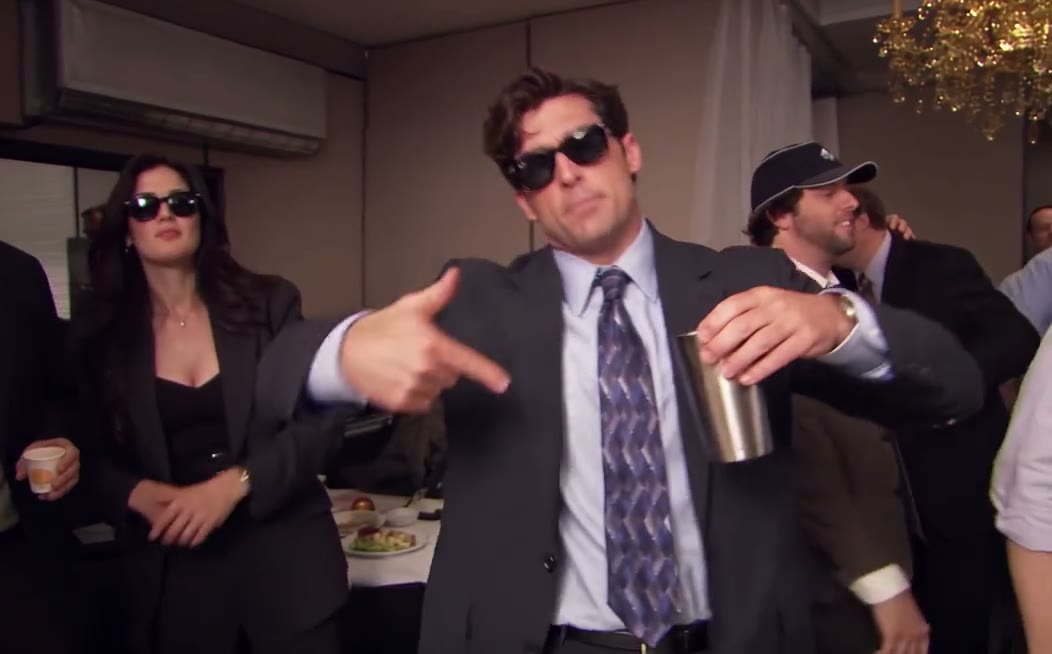
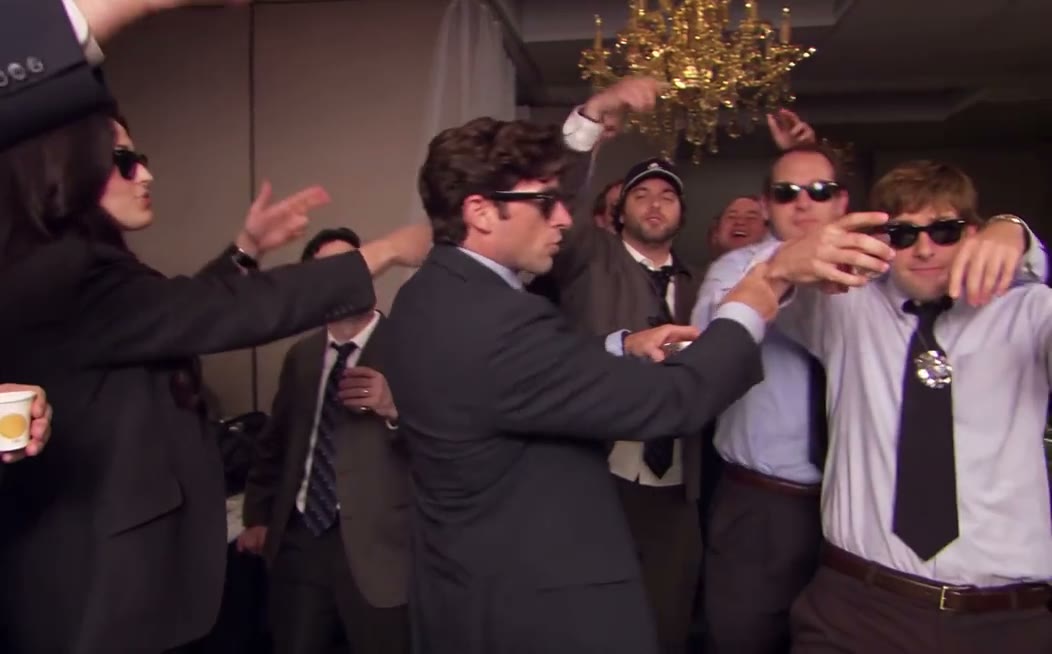
Burning Bridges AI Trend turns your portrait into the lead of a short party performance. In this example, a suited performer holds a metallic cup, gestures toward the camera and turns toward the surrounding crowd under warm chandelier light. The name describes the trend; the scene does not contain a burning bridge.

Your photo supplies the lead appearance and outfit details. The preset scene description sets the action, camera work and party atmosphere. AI also generates guests whose outfits fit the lead. Preview the 15-second result with sound.

Create a party performance from your photo

The cup, expressive gestures and nearby crowd give the scene its recognizable atmosphere. Create a personal version from your photo and share it with friends after reviewing the characters, props and background.

From portrait to performance

How to make a Burning Bridges AI Trend video

Use one clear adult portrait and the preset party scene to generate a 15-second video with sound. Start with landscape framing to leave room for the cup, hands and crowd.

  1. Keep the face and shoulders visible

    Choose a well-lit portrait or upper-body photo of one person, facing forward or slightly turned. Avoid sunglasses, hands over the face and tight crops. A visible outfit helps guide clothing; you do not need to hold a cup or recreate the party in your photo.

  2. Upload one photo you may animate

    Sign in, upload one JPG, PNG or WebP up to 10 MB, and check the preview. Confirm permission to use the likeness, choose your settings and generate with the preset scene.

  3. Choose settings and check the quote

    Choose Seedance 2.0 and an available resolution. The default output is 16:9; 9:16 and 1:1 are also available. Duration stays at 15 seconds with audio generation on. Review the live credit quote before generating.

  4. Review the people, cup and sound

    Play the full clip with sound. Check the lead face, grip, turns and newly generated guests, then download the result for editing or sharing.

Preview the Burning Bridges AI Trend with sound

Create an AI performance with sound from your photo and the preset party scene. Watch and listen before saving your favorite version.

  1. Play the full result

    Turn on the player sound and watch all 15 seconds, checking how the movement, people and audio work together.

  2. Check the lead and guests

    Check that the lead resembles your photo and the guests have new faces and outfits. Watch for identity changes during turns and overlaps.

  3. Download and share

    Save the video with sound, then upload it to your preferred social platform or continue editing it to suit your style.

Before posting, watch the full clip again to check the volume, lead performer, cup and surrounding guests.

Inspiration and AI creation

Who makes the Burning Bridges AI Trend?

The performance example

This page uses the party-performance clip shown in the generator as its visual reference. We have not verified its original performer, director or first uploader from this file alone, so we do not attribute authorship to a particular account. The sample is a reference, not a result generated from your photo.

Your own interpretation

You choose the lead photo and review the AI interpretation before sharing. Credit the source you actually used and label the result as AI-generated. Using this tool does not imply an endorsement by a performer or music artist.

Independent creation tool. Not affiliated with the original performers.

Burning Bridges AI Trend: party scene preview

These frames show the cup, lead gestures, chandelier and surrounding people in the supplied clip. They are example frames, not AI-generated results from an uploaded portrait.

Burning Bridges example frame showing the lead holding a cup beneath a chandelier
Lead performance · metallic cup and hand gestures
Burning Bridges example frame showing the lead turning toward the surrounding crowd
Turning toward the crowd · overlapping figures and warm light

Photo and framing tips for the Burning Bridges AI Trend

Use a clear upper-body photo with visible face and outfit details. Start with 16:9 to leave room for the hands, cup and crowd. Check for extra fingers, cup distortion and changes in appearance during turns.

What to check in a Burning Bridges AI Trend video

A Burning Bridges AI Trend clip combines a solo lead, a metallic cup and a lively indoor crowd. The image needs to remain readable when the performer turns and people overlap. Review the full party sequence with its sound on, then pause on the details that matter most to your photo.

Follow the cup through the gestures

Look for a stable cup shape and a natural grip when the hand moves across the body. Fingers can merge with the prop or appear differently between frames. A convincing still frame is not enough: replay the gesture at normal speed to see whether the action remains coherent.

Keep the lead distinct from the guests

Compare the lead’s face and outfit during the turn toward the crowd. Guests are generated for the party atmosphere; they are not selected from additional photos. Check the people nearest the lead for duplicated faces, overlapping limbs or clothing that blends into the main subject.

Review framing and generated sound together

Burning Bridges AI Trend outputs a 15-second clip with sound. Start with landscape framing if you want room for the cup and crowd, and check the edges after changing ratios. Listen for awkward audio changes and review picture and sound together before downloading or sharing; audio quality and timing can vary.

For a product shot, landscape or a performance outside this party scene, describe a new idea in the custom image-to-video generator.

Create AI Video

Burning Bridges AI Trend FAQs

What scene can I create with Burning Bridges AI Trend?

It creates an indoor party performance from your portrait, with cup-holding, gestures and turns in a warm chandelier-lit room. Review the movement and character details after generation.

How many photos do I need?

One clear adult portrait or upper-body photo. Your photo defines the lead appearance, and AI designs the crowd for the preset scene without extra guest photos.

Does the video include music?

The tool generates a video with sound. Play, review and download the result directly without first adding audio on TikTok.

How are the surrounding guests created?

AI designs guest faces, hairstyles, outfits and interactions to fit the party and lead outfit. No guest photos are needed. Check the result for repeated faces or unnatural details.

Why start with landscape video?

The default 16:9 format leaves more room for the lead, cup and surrounding people. The 9:16 format is tighter; check the frame edges when changing ratios.

What is the cost and generation time?

The cost depends on your chosen model and resolution. Check the live quote before submitting. Fifteen seconds is the output length; processing time depends on the provider queue and photos remain subject to review.

More AI video effects to try

Create your Burning Bridges AI Trend video

Create a 15-second Burning Bridges AI Trend party video with sound from one photo.

Create my Burning Bridges AI Trend