ReelMorph

Two performers, one mic

Hotel Lobby AI Trend Video Generator

Cast two people in the orange studio with one suspended microphone. Create a silent Hotel Lobby AI Trend performance from two photos, then add the official sound on TikTok after downloading.

Photo 1 · Left performer

Photo 2 · Right performer

This effect generates a silent 14-second video. Download it, then add the official sound on TikTok. Exact beat and lip sync are not guaranteed.

Checking availability…

Generation cost: — creditsYour balance: —
Photo & credit policy

Photos are uploaded only when you generate. Provider storage is temporary.

Credits return automatically when a generation is confirmed failed.

9:16 · 14s · 720pMy videos

This example clip includes sound. Your generated video will be silent; download it and add the official original sound on TikTok.

Meet the trend

What is Hotel Lobby AI Trend?

Hotel Lobby AI Trend is a two-person meme format based on the recognizable orange-set performance of HOTEL LOBBY on A COLORS SHOW. Despite the name, the visual is a minimal studio, not an actual hotel lobby.

Photo 1 defines the left character and photo 2 defines the right. The preset scene description sets the orange studio, suspended microphone, gestures and full-body framing. Choose 5–15 seconds. The generated video has no music, voices or sound effects.

Why does it spread?

The orange set and two-person interaction make a clear, simple composition. Use permitted photos to explore different outfits and character combinations.

Cast both roles clearly

How to do Hotel Lobby AI Trend

Prepare one photo for each person, check the left and right roles, then generate a silent performance. Add the soundtrack separately after reviewing and downloading the video.

  1. Choose two clear individual photos

    Use one person per image, with a clear face, visible outfit and similar lighting. A full-body photo helps define trousers and shoes; an upper-body photo also works, but AI must invent the missing clothing. Avoid face coverings, heavy filters and group photos.

  2. Check left and right roles

    Upload photo 1 for the left character and photo 2 for the right. Each must be JPG, PNG or WebP up to 10 MB. Confirm permission for both people, then generate using the preset scene description.

  3. Choose settings and review credits

    Choose Seedance 2.0, 5–15 seconds, resolution and aspect ratio. The default duration is 14 seconds. Check the live credit quote, then generate. The output is silent even though the example clip has sound.

  4. Review, download and add the sound

    Check both identities, left/right positions, full-body framing, hands and the hanging microphone. Download the silent clip, then add the official sound available to your account on TikTok. Adjust the audio start and preview the whole video; exact beat and lip sync are not guaranteed.

Add the TikTok sound to your Hotel Lobby AI video

Your generated video has no music, voices or sound effects. Download it, then add the official sound available to your account on TikTok.

  1. Download the silent performance

    Watch both people from start to finish. Check their faces, hands, spacing and full-body framing before saving the clip.

  2. Find the official sound

    Search TikTok for HOTEL LOBBY by Quavo and Takeoff. Check the artist or official release and listen to the sound before selecting it, if available to your account.

  3. Add, align and preview

    Upload your silent clip to TikTok, add the sound and adjust its starting point if the editor allows it. Preview the entire clip before posting.

Audio availability varies by account and region. If the official track is unavailable, use an available track you have permission to use. Adding sound does not recreate the lip movements or guarantee beat-perfect timing.

The performance behind the meme

Who makes the Hotel Lobby AI Trend?

Quavo, Takeoff and A COLORS SHOW

The visual reference is Quavo and Takeoff performing HOTEL LOBBY on A COLORS SHOW: two performers, a solid orange studio and one suspended microphone. The linked COLORS performance is the source reference, not a ReelMorph-generated video.

COLORS · Quavo & Takeoff — HOTEL LOBBY ↗

AI creators explore duet scenes

Creators use their photos to make AI duets in the familiar setting. Your uploaded photos define your pairing. Credit your inspiration and identify your output as AI-generated when sharing; ReelMorph is independent of the artists and COLORS.

Independent creation tool. Not affiliated with the original performers.

Hotel Lobby AI Trend: duo performance preview

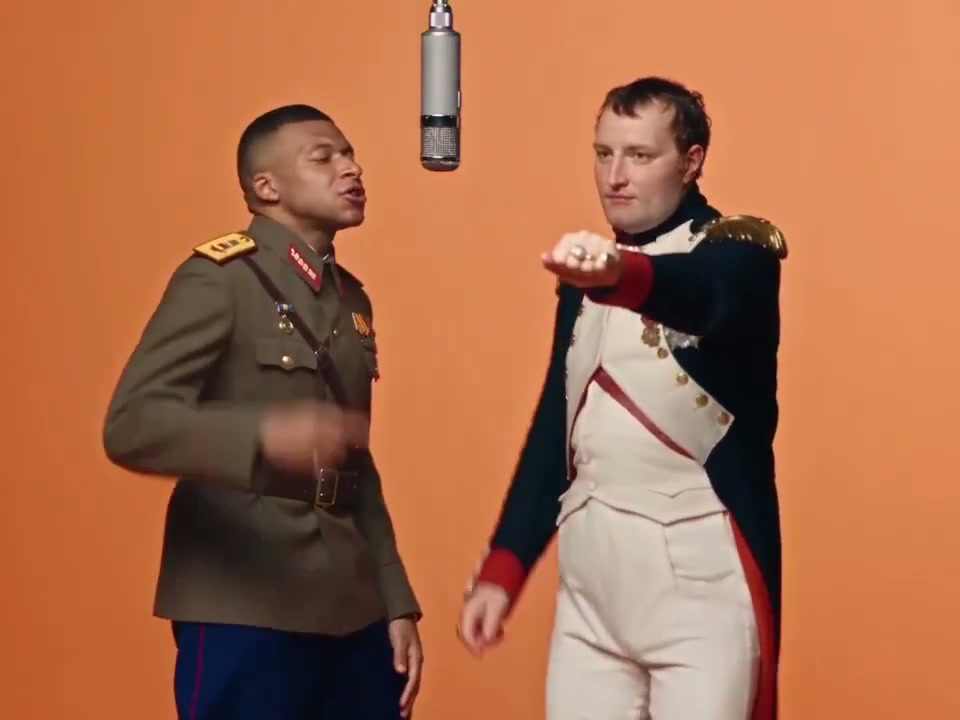
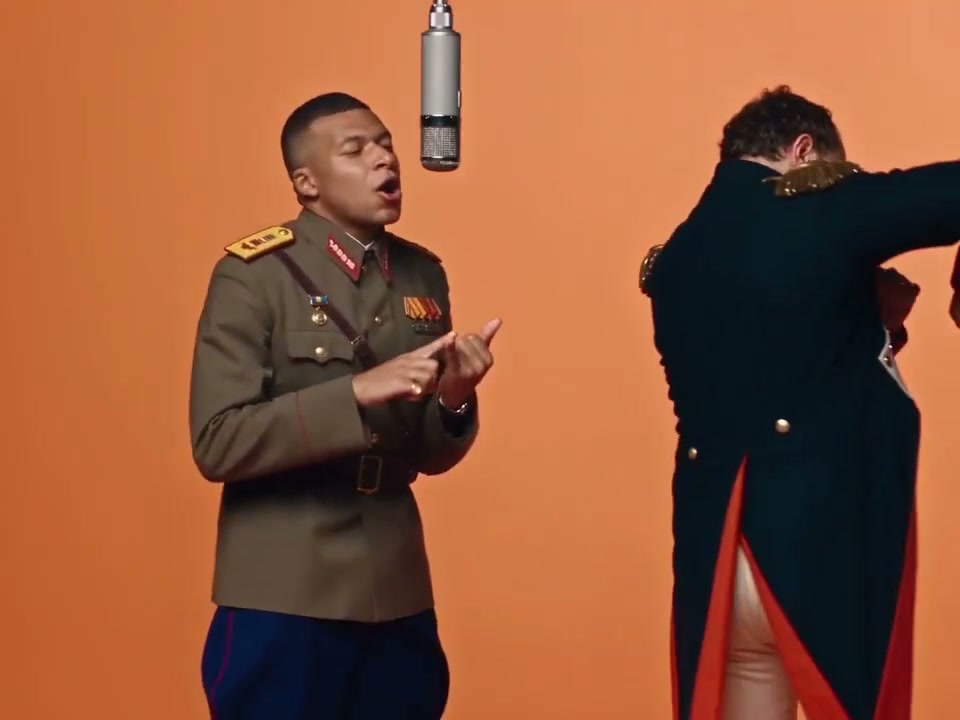
These frames come from the existing example clip. They show the orange set, hanging microphone and interaction between the two roles; they are not generated results. The output is guided toward a wider head-to-toe view.

Hotel Lobby example frame showing two performers and one suspended microphone in an orange studio
Example at 2 seconds · roles and microphone placement
Hotel Lobby example frame showing the two performers gesturing in the orange studio
Example at 10 seconds · gestures and interaction

Choose two photos for the Hotel Lobby AI Trend

Choose two separate photos with clear, similarly sized faces and readable clothing. Full-body images provide more detail for shoes and lower garments. Check both people throughout the result: identity, spacing, gestures and framing may vary. Adding a soundtrack later cannot repair the picture.

Review both performers in your Hotel Lobby AI Trend

The Hotel Lobby AI Trend uses an orange studio, a suspended microphone and two performers. The simple set makes character changes easy to notice. Review both people throughout the clip, especially when gestures overlap, instead of focusing only on the person nearest the camera.

Keep left and right identities consistent

Photo 1 defines the left performer and photo 2 the right performer. Compare each person’s face, hair and clothing as they move. Two separate, clearly lit photos help you provide distinct visual references; they do not guarantee that the model will preserve every detail or keep the spacing unchanged.

Inspect full-body framing and the microphone

The scene aims to show the performers from head to shoes. Check feet and lower clothing, particularly if the uploaded photos did not include them. Look for hands passing naturally around the microphone and for limbs merging when the two people move close together. Changing the aspect ratio can alter the space available to both performers.

Plan the silent edit before posting

Hotel Lobby AI Trend generates a silent clip between 5 and 15 seconds, with 14 seconds selected by default. Decide which part of an available sound you want to use, then check the whole edit after adding it. The sample’s soundtrack is not included in your result, and adding a song cannot correct mouth animation or a cut-off gesture.

If you need a solo animation or a location other than the orange studio, use your own photo and motion description in the custom generator.

Create AI Video

Hotel Lobby AI Trend FAQs

Is the scene really a hotel lobby?

No. The trend name comes from the song. The recognizable scene is a minimal orange A COLORS SHOW set.

Do I need two separate photos?

Yes. Upload one photo per person: photo 1 for the left performer and photo 2 for the right performer.

Does the download include the original song or any audio?

No. This effect generates a silent video with no music, voices or sound effects. The example may play its existing soundtrack, but your output is silent. Add the official sound separately on TikTok if it is available to your account.

Will the gestures and lips match the song exactly?

Adding audio later does not change the existing mouth animation. Adjust the audio start, then preview the movement and rhythm throughout the clip.

What settings can I choose?

Choose Seedance 2.0, a supported resolution, 9:16, 16:9 or 1:1, and 5–15 seconds in one-second steps. The default is 14 seconds. The page shows the current credit quote before generation; Original Rap is no longer offered.

What do I need to get started?

Two individual portraits you have permission to use. The scene description is provided. Upload the photos, confirm the settings and generate. The guide covers photo selection, reviewing the result and adding sound.

More AI video effects to try

Create your Hotel Lobby AI Trend with two photos

Upload two photos, generate a silent performance, then add your soundtrack after downloading.

Create my Hotel Lobby AI Trend