 ReelMorph
How to Make the Burning Bridges AI Trend from One Photo
On this page
Burning Bridges AI Trend
Make a 15-second Burning Bridges AI Trend video with sound from one portrait. Learn how to choose a photo and review the new cast, movement, props and audio.
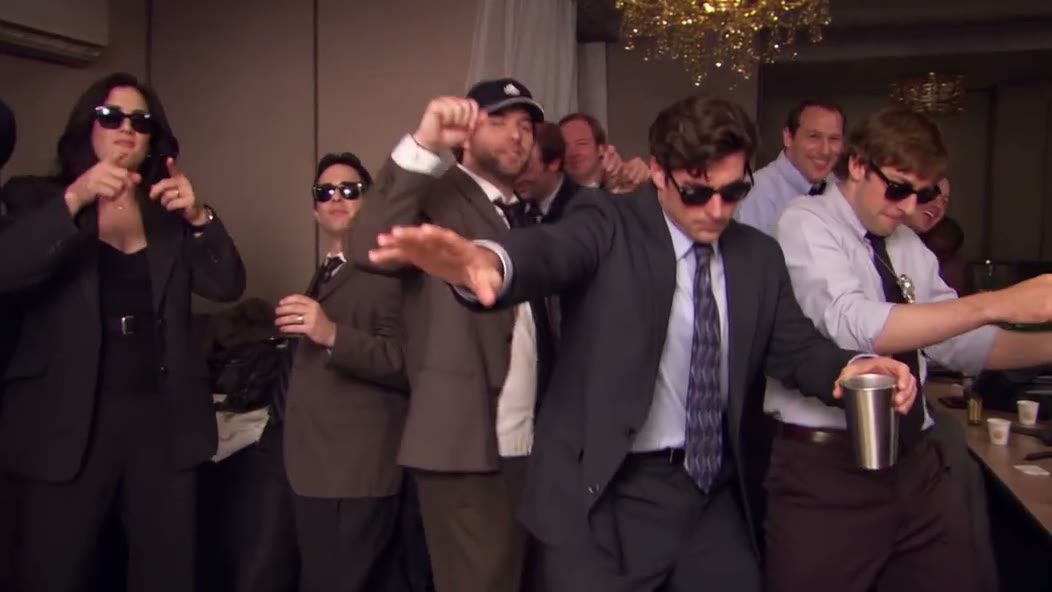
To make a Burning Bridges AI Trend video in ReelMorph, upload one clear portrait and generate a 15-second party performance with sound. Your portrait and the preset party scene description guide an AI performance with guests who fit the setting. Play, review and download the result when it is ready.
This guide explains the scene shown in our generator: a lead performer holding a metallic cup, gesturing and turning toward a crowd beneath warm chandelier light. The scene description is provided; upload your portrait and choose the settings.
Open the Burning Bridges AI Trend generator →
What can you create with Burning Bridges AI Trend?
This version puts the person in your photo into the lead role of an indoor party scene. The scene includes frontal gestures and a turn toward nearby people. The cup, close crowd and chandelier help establish the setting. Despite the name, this preset does not generate a bridge on fire.
Your portrait supplies the lead appearance and outfit details. The preset scene description sets the movement, framing and warm party atmosphere. AI designs new faces, hairstyles and outfits for the guests to fit the setting and your clothing, without extra guest photos. This is generative video, so it may reinterpret a gesture, alter a background face or lose a prop detail. The example illustrates the scene; generated results can differ.
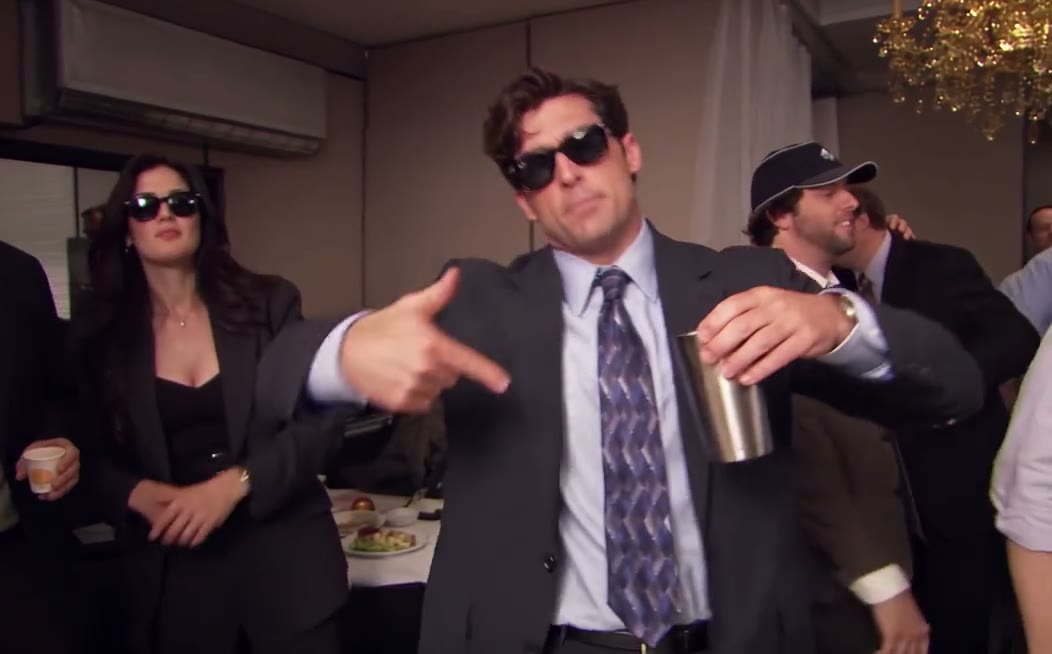
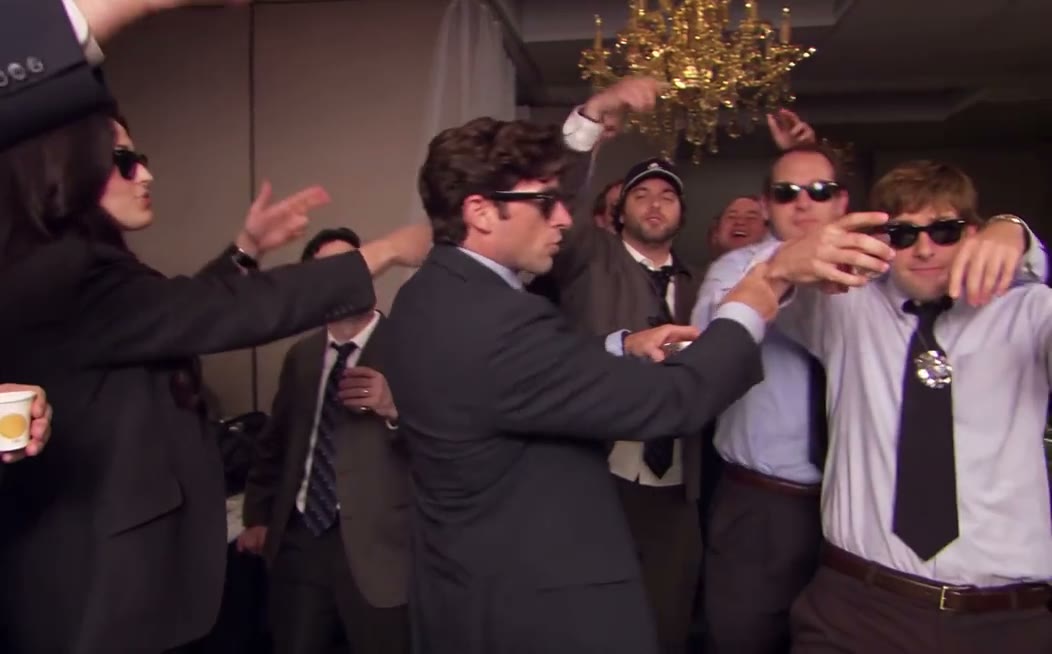
Frames from the example clip, not generated results from an uploaded portrait. The article cover is a landscape crop from the same clip.
We do not infer the original performer, director or first uploader from this file. When posting your remix, credit the actual source you used and identify the result as AI-generated. For another one-photo performance format, see the Bulin 47 AI Trend guide.
What makes Burning Bridges AI Trend appealing to share?
The party scene offers an easy role to imagine taking: the lead is close to the camera, guests respond nearby, and the cup and turn suggest a moment among friends.
- Becoming the center of a party invites participation. An everyday portrait enters a lively scene. Choosing an outfit and lead appearance lets creators make a version with a personal character.
- Props and interaction provide recognizable details. The metallic cup, warm chandelier and nearby crowd give the scene a clear identity. Viewers can follow the gestures and interactions as well as the face.
- A shared setting allows different interpretations. The lead's clothing and demeanor change how the party feels, making versions interesting to compare and prompting the question of how someone else might perform it.
Make the lead easy to identify in your version. A crowd that dominates the frame or repeats the same face can distract from the performance.
Scene breakdown: lead, metallic cup and guests
Facing the camera: establish the performer
Look for a readable face, shoulders and clothing. Warm light and the chandelier establish the party, while facial detail should remain visible. There is no need to imitate party lighting in the source portrait.
Gesturing with the cup: follow continuity
The cup persists through movement. A convincing still does not establish a convincing turn: check the grip, rim shape and whether the same prop remains after it has been hidden from view.
Turning to the crowd: keep the roles distinct
The turn connects the lead to nearby guests and introduces side views and overlapping bodies. Check that the lead stays recognizable, guests look distinct and adjacent figures do not merge. AI generates these supporting characters without additional photos.
What should you prepare?
Choose one permitted adult upper-body photo with a clear face, shoulders and top, and have the credits shown in the quote. Casual clothing can suggest a relaxed look; a visible shirt or jacket can suggest something more formal. AI completes areas outside the image, so review the actual outfit in the result.
Start with the default 16:9 format to leave room for the cup and guests. This effect generates video with sound; adding music on TikTok is not a required finishing step.
1. Choose a clear portrait with room around the shoulders
Use a photo of one adult whose likeness you have permission to animate. A well-lit, front-facing or slightly angled upper-body photo gives the model useful detail about the face and outfit. Keep the whole head and both shoulders inside the image.
Avoid a hand over the face, sunglasses, heavy filters, motion blur and group photos. You do not need to pose with a cup. Holding a cup is part of the preset scene. A suit is optional. Choose the outfit you want to see in the video and keep your top and shoulders clearly visible.
Prepare a JPG, PNG or WebP no larger than 10 MB. If the face occupies only a tiny part of the photo, crop closer while retaining the head and shoulders. Do not crop so tightly that the model has no visible clothing to work from.
2. Generate a 15-second clip with sound
- Open the generator, sign in and upload your photo. Check the preview before continuing.
- Confirm permission to use the image. The effect provides the party scene description.
- Choose Seedance 2.5 or Seedance Mini and an available resolution.
- Start with 16:9, the default output ratio. Landscape framing leaves room for the lead, cup and surrounding guests. You can also choose 9:16 or 1:1, which require the scene to be recomposed.
- Check the current credit quote and generate. The duration is fixed at 15 seconds and audio generation is on.
The cost changes with the selected model and resolution. Check the live credit quote before submitting. Wait for the task status to resolve before submitting again, especially if a network interruption leaves the result uncertain. Processing time depends on the provider queue.
Prompt essentials: lead, guests and a consistent prop
The party description is supplied on this page, which has no editable prompt field. This original example explains how to organize such a scene; you do not need to paste it into the generator.
Describe the lead and guests separately
Start with one central performer, then describe other adults as supporting guests. Clothing style and lighting can make them belong in the same room without giving everyone the same outfit or face. Differences between guests help the scene feel natural.
An adult holds a metallic cup at a warmly lit indoor party, makes natural gestures toward the camera and then turns toward nearby friends. The other adults have distinct faces and outfits suited to the gathering. Keep the lead at the center of attention, maintain coherent contact between the hand and cup, and leave room to see the turn and crowd reactions.
Leave enough room for the action
A permanent face close-up conflicts with showing the cup and surrounding guests at the same time. This scene benefits from seeing expression, upper-body movement and nearby people together, making landscape a useful starting point. If you choose 9:16 for a vertical post, inspect the hands and cup at the edges.
The tool generates guests automatically but does not let you name or select each person's face or clothing. Choose a suitable lead photo and format, then review the guests in the result; no supporting-character uploads are required.
3. Review the performance before downloading
Watch the full result once at normal speed, then inspect any moment that looks wrong. The busiest parts of this scene involve hands crossing the body and people overlapping as the lead turns.
- Face: Does the lead remain the same person in frontal and side views?
- Cup and grip: Does the cup keep its shape and stay in the intended hand? Look for fingers merging into the cup or passing through it.
- Movement: Do gestures and turns form a coherent sequence, without a sudden pose jump?
- Framing: Can you still see the important hands, cup and nearby people?
Save the result while its download link is available. The service does not promise permanent file storage. If a detail is unacceptable, decide what to change before starting a new generation; another run may consume credits without fixing every detail.
4. Listen, download and share
When generation finishes, turn on the player sound and review the picture and audio together. You can preview the complete result without adding music on another platform first.
- Listen through. Check that the player is unmuted, the volume is comfortable, and the movement works with the sound.
- Review the guests. Check for distinct faces beside and behind the lead, outfits that fit the party, and stable identities during turns and overlaps.
- Save the result. Download the file and play it on your phone or computer to check both picture and sound.
- Edit or share. Upload it to your preferred social platform, or trim the clip, add captions and adjust the volume first.
How to compare two generations fairly
Save the original files, then compare the lead, hand-and-cup interaction, guests and sound in that order. Pause at a frontal view, a side view and the end of the turn, then watch at normal speed. An attractive screenshot does not establish smooth motion.
Before another generation, choose one problem to address. Replace a photo with insufficient facial detail or change the aspect ratio when the edges are too crowded. Higher resolution changes output dimensions; it does not replace checks for identity and prop continuity. Note which input you changed, while remembering that generation also varies randomly and one comparison cannot prove a setting is always better.
Common problems and what to change
The lead looks like a different person
Try a sharper, evenly lit portrait without glasses or facial occlusion. Identity retention is not guaranteed.
The cup or fingers deform
Check the whole action, not just one frame. A clearer upper-body photo may help, but prop interaction remains a generation limitation.
The crowd or hands disappear
Use 16:9 first. A portrait frame has much less horizontal room for this scene.
I cannot hear sound during playback
Check the player, device volume and browser tab mute settings, then download the file and try another player. If the file still has no audio track, keep the task details and contact support.
The guests do not look as expected
AI-generated guests may have repeated faces or unnatural details. Check every visible guest, especially those close to the lead. If you are unhappy with the result, you can generate another version and compare. Each new generation uses the credits shown in the quote.
The provider rejects the photo
Read the displayed reason and use an input permitted by the provider. Do not repeatedly resubmit the same rejected image.
Frequently asked questions
Can AI generate the guests without extra photos?
AI can design new adult guests automatically. Your photo defines the lead, while the guests receive distinct faces, hairstyles and outfits suited to the party, interacting with the lead in the scene. You do not need photos for them and cannot choose each guest individually. Review the result for consistent appearances and repeated faces.
What materials do I need?
Prepare one clear adult portrait you have permission to use. The party scene description is provided; upload your photo, choose the settings and confirm the quote.
Is the example player showing my result?
No. It shows the example scene before generation. A successful task replaces that area with your actual result; the example images in this article remain example frames.
Is this the same workflow as Bulin 47 AI Trend?
Both use one photo to create a 15-second performance. Burning Bridges uses a landscape party scene with a cup and surrounding crowd, with audio generation enabled. Bulin 47 uses a street performance; its guide explains the audio workflow.
For a first attempt, use one clear portrait and the default landscape ratio. Play the result with sound, review the lead, guests, cup and gestures, then save the version you like.
Make your Burning Bridges AI Trend video →