 ReelMorph
How to Make the Hotel Lobby AI Trend from Two Photos
On this page
Hotel Lobby AI Trend
Choose two photos, generate a silent Hotel Lobby AI Trend performance, then add sound on TikTok. A guide to roles, full-body framing, timing and common problems.
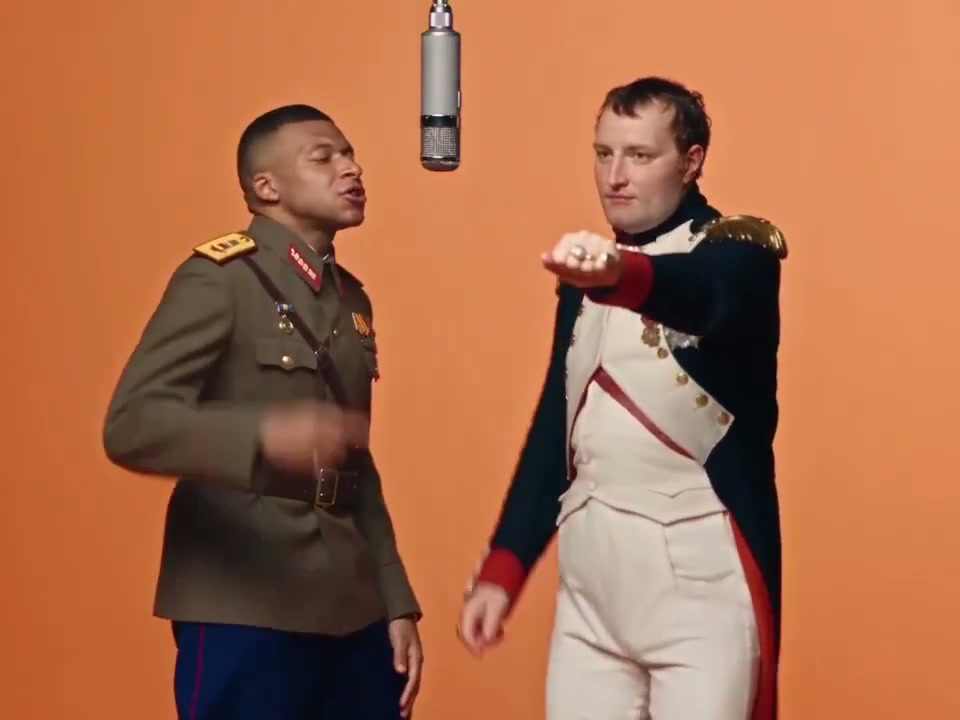
Upload two separate photos, assign the left and right roles, and generate a silent Hotel Lobby AI Trend video. Review and download it, then add the official HOTEL LOBBY sound available to your account on TikTok. Your download contains no music, voices or sound effects, even though the example player has sound.
Open the Hotel Lobby AI Trend generator →
What you can create with Hotel Lobby AI Trend
The recognizable setting comes from Quavo and Takeoff performing HOTEL LOBBY on A COLORS SHOW: two performers, an orange studio and a suspended microphone. The name refers to the song; the setting is a studio. ReelMorph is independent of the artists and COLORS.
Create an AI duet from two photos and the preset scene description. Photo 1 supplies the left character’s appearance and clothing; photo 2 supplies the right character’s. The scene features an orange studio, a suspended microphone, gestures and full-body framing. AI fills in details outside your photos, so check that both people remain fully visible.
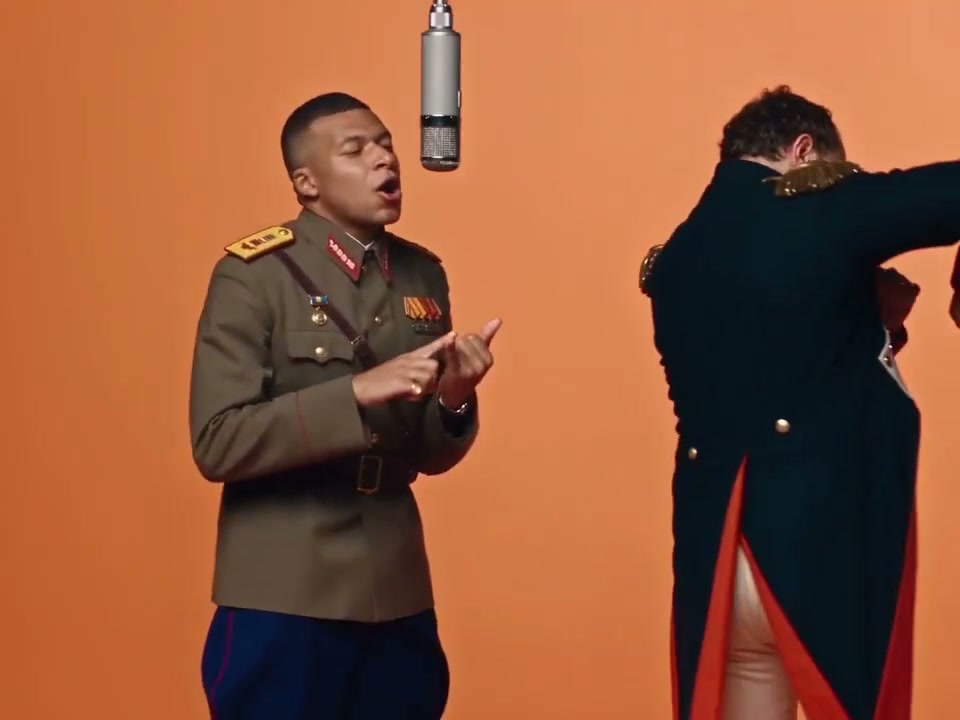
Frames from the tool's existing example clip, not results generated from your photos and not frames of the original COLORS artists. The article cover uses the first frame.
The generated video is silent. After downloading, add the official sound available to your account on TikTok and preview the picture and audio together.
Why is Hotel Lobby AI Trend recognizable and easy to remake?
The orange studio, suspended microphone and two-person composition form a distinctive visual combination. Even a brief excerpt can suggest the performance setting.
The simple set makes differences between performers stand out. With little background clutter, viewers notice faces, clothes and gestures, making different duos interesting to compare. Two roles create a personal connection. Friends or partners can take part together; choosing sides and contrasting their appearances gives each version a personal element.
Music and gestures provide shared recognition cues across versions. In ReelMorph, picture and sound are separate stages: generate a silent duet, then add an available official sound on TikTok. Aim for two readable performers and a natural interaction, with room for both to contribute.
Reading the composition: positions, microphone and space
- Left and right positions help identify each person. Photo 1 belongs to the left performer and photo 2 to the right. Follow each face and outfit throughout the clip, not only in the opening.
- The suspended microphone anchors the setting. It should remain visually separate from faces, hands and clothes. Watch the moments when someone raises a hand or approaches it.
- Full-body framing needs room for movement. Space above the heads, beside the arms and below the feet matters. A frame that barely fits a stationary pair may crop them when they gesture or step sideways.
- Interaction allows different actions. The pair can respond to one another without moving identically. Where arms overlap, check for extra limbs or confused identities.
Before starting: individual photos and a sound choice
Prepare clear individual photos of two adults who agree to the creation and intended publication. Aim for comparable lighting and clarity: a detailed frontal portrait and a tiny, blurred profile give the model very unequal information about the two roles.
For recognizable trousers and shoes, choose full-body photos where the faces remain clear. With upper-body portraits, expect AI to complete the lower outfits. Decide your publishing format and clip length, then check the corresponding quote. You can also listen to the official sound available to your TikTok account and identify a segment suitable for a duet.
1. Choose one photo for each role
Use two individual photos rather than uploading the same group picture into both slots. Keep faces unobstructed and large enough to see. Similar lighting and face sizes help give both people useful identity detail. Avoid heavy filters, motion blur, masks and hands covering the face.
Choose clothing you want to appear in the result. Full-body photos provide information about trousers, skirts and shoes. Upper-body photos also work, but the model must fill in the missing outfit; exact clothing and proportions are not guaranteed. A portrait's pose does not determine the whole performance.
Upload photo 1 for the left performer and photo 2 for the right performer. Each file must be JPG, PNG or WebP, up to 10 MB. Check both previews and confirm permission to use both people's likenesses. The scene description is provided; confirm your settings and generate.
2. Generate and review a silent performance
Sign in and choose the settings shown in the generator:
- Duration: 5–15 seconds in one-second steps, with 14 seconds as the default. This is the finished clip length, not generation time.
- Model and resolution: Seedance 2.5 or Mini, using a resolution supported by the selected model.
- Aspect ratio: 9:16, 16:9 or 1:1. The default is 9:16; a wider frame offers more horizontal room for two people. Inspect the actual output for cropped feet or cramped spacing.
- Credits: use the live quote shown before submission. Changing duration, model or resolution can change the cost.
Start generation once and follow the task status. If the connection drops or you refresh, check My Works before creating another task. A network error by itself does not confirm that generation failed.
Watch the entire result before downloading. Check whether each identity stays on its assigned side, both bodies remain visible, hands stay natural and the microphone remains separate from faces and clothing. Keep an eye on overlapping arms and turns, where identity or anatomy can drift. Save the finished silent video while the download is available.
Prompt essentials: describe each performer separately
The Hotel Lobby page supplies its scene description; there is no prompt to enter. This original example explains how a two-person scene can be organized and helps you review the photo assignments and relationship in the finished clip.
Assign roles before describing the shared setting
“Two people performing in an orange room” leaves positions and actions unspecified. A clearer structure identifies the left and right roles, describes their setting and interaction, then defines the framing. Referring to every action only as “he” or “she” can make the intended performer ambiguous.
Two adults perform side by side in an orange studio. The left performer gestures toward the camera, and the right performer responds with a slight turn and movement. A suspended microphone hangs between them. Leave space to show both from head to toe, keeping their faces, clothing and actions distinct. Generate silent picture for music to be added later.
Make interaction and framing compatible
Frequent crossings conflict with asking both people to stay on fixed sides. A tight face close-up also cannot show both pairs of shoes. Describe useful space for a full-body duet instead of relying on labels such as “ultra-detailed” or “cinematic.”
In this tool, you control photos, side assignments, duration and aspect ratio; you cannot edit the action description on the page. For cramped results, review the photos and format. For confused identities, check upload order and whether each image contains only one person.
3. Add sound on TikTok and check the timing
Find the official HOTEL LOBBY recording by Quavo and Takeoff in TikTok's available sounds. Check the artist or release source and listen to the actual recording: a title alone does not establish which version it is.
Upload your downloaded video, use the editor's sound option to add the available track, and adjust its starting point if trimming is offered. For current controls, see TikTok's Sounds help. Labels and availability may vary by app version, account and region. If the official sound is unavailable, choose an available track you have permission to use.
Pick a clear gesture as a timing cue, then preview the beginning, middle and end. Moving the audio start may improve one beat without aligning the whole clip. AI-generated gestures and mouth movements can vary, so review the actual result.
Adding a song does not change the mouth animation. It cannot repair lip sync, swapped identities, distorted hands or framing. Review the picture before adding music and check the combined result again before posting. Credit your inspiration and label the clip as AI-generated.
How to choose a timing cue for two performers
Find a section where both people are visible and move naturally. Choose a shared pause or one clear gesture as an audio alignment cue, then watch whether the other person's movement also feels coherent. Focusing only on one mouth can hide problems in the other performance.
For a shorter edit, retain a complete action: from before an arm rises until it lowers, or from a turn to the performer settling again. Avoid ending halfway through a gesture. Check the platform's posting preview so captions and controls do not cover faces, hands or the microphone.
Common problems and what to check
- The download has no sound: this is the intended output. Add the soundtrack after downloading.
- The sample has sound but my result does not: the sample soundtrack is not included in your output.
- The two faces blend or switch sides: check that each upload contains just one clear person and that the roles are assigned correctly. A new generation can differ; preserving both identities is not guaranteed.
- Feet are cropped or clothing changes: use photos that show more of the outfit, consider a wider aspect ratio, and review the whole result. The preset asks for full-body framing, but that instruction is not a guarantee.
- The mouth does not match the lyrics: shifting the sound only changes timing, not the generated mouth movement. Preview the mouth movements before posting.
- A task fails or remains unresolved: read the message on the page and check My Works before retrying. Keep the task ID when contacting support.
Frequently asked questions
Does the generated video include sound?
No. Hotel Lobby generates a silent video. Download it and add a track that is available to your account on TikTok and that you have permission to use.
Can I generate from a single couple photo?
This preset requires two separate uploads, one per role. Use a clear individual photo for each person so the left and right assignments are unambiguous.
Is the orange scene an actual hotel lobby?
No. It refers to the orange studio setting associated with the COLORS performance of HOTEL LOBBY.
Does changing the soundtrack fix the video?
No. It can change how the timing feels, but cannot repair faces, hands, positions, framing or mouth movement.
Create my silent Hotel Lobby AI Trend video →
For a one-person performance, read the Bulin 47 AI Trend guide, or browse all video effects.