 ReelMorph
How to Make a Tiny Desk AI Video: Photos, Prompts and Editing
On this page
Tiny Desk AI Trend
Plan a Tiny Desk AI concert with clear roles, photo tips, adaptable prompts, shot continuity, audio editing and fixes for faces and instruments.
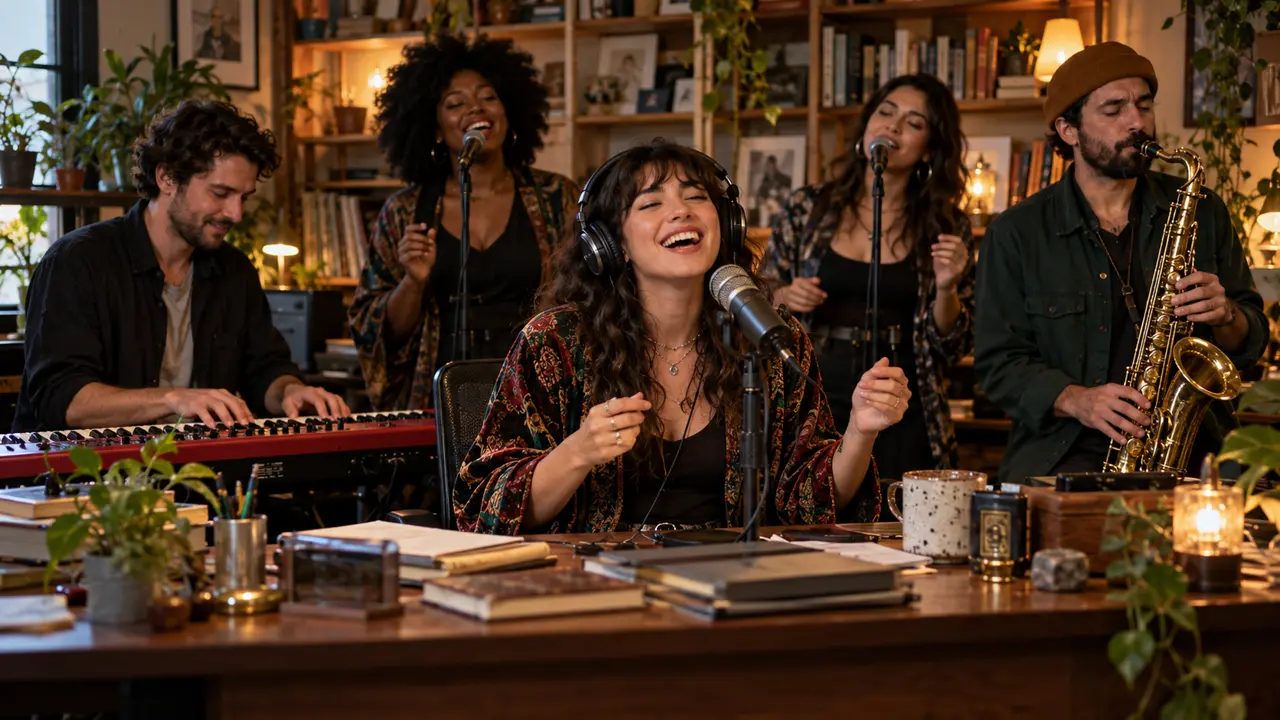
You can make a Tiny Desk AI video with a clear portrait, a permitted motion reference and a basic editor. Start by choosing the lead and planning the cuts; this guide works without a specific site, credit plan or private preset.
AI-generated concept illustration, not a video-generation result or a frame from the original concert.
What is the Tiny Desk AI trend?
Tiny Desk AI turns a portrait into the lead of an intimate office-band performance. The familiar ingredients are a desk, crowded shelves, headphones, musicians reacting to one another and an expressive solo close-up. The “Outstanding” association comes from Charlie Wilson’s NPR Music performance: his official website lists The Gap Band’s song in the concert.
That source verifies the concert and repertoire. It does not establish who first made an AI remix. Keep the performer, concert producer and later remix creators separate when crediting a video. A recast clip is generated entertainment, not evidence that its pictured people performed together.
Why the office-band reveal works
The humor comes from casting and reaction. A person normally seen in another setting suddenly leads a band; the supporting musicians make the scene feel shared. The laugh gives the audience a recognizable emotional beat, while the saxophone cut changes the focus before the final reaction. These are observations about the format, not a promise of reach or engagement.
Give the lead enough screen time to be recognized. Too many faces, costume changes or effects can hide the part that makes the remake personal.
Plan shots around your actual reference
The reference used on this page is a 15-second vertical edit, measured at 540 × 960. In the inspected frames, the band is visible at 1 second, the laughing lead at 7 seconds, the saxophonist at 10 seconds and the band again at 13 seconds. These are sample positions, not exact cut boundaries. Do not force the opening or timestamps of a different edit onto it.
For your own sequence, sketch four jobs: establish the group, reveal the lead’s expression, give the instrument its moment, then finish on a readable group reaction. A desk object, shared lighting and consistent wardrobe help join the shots.
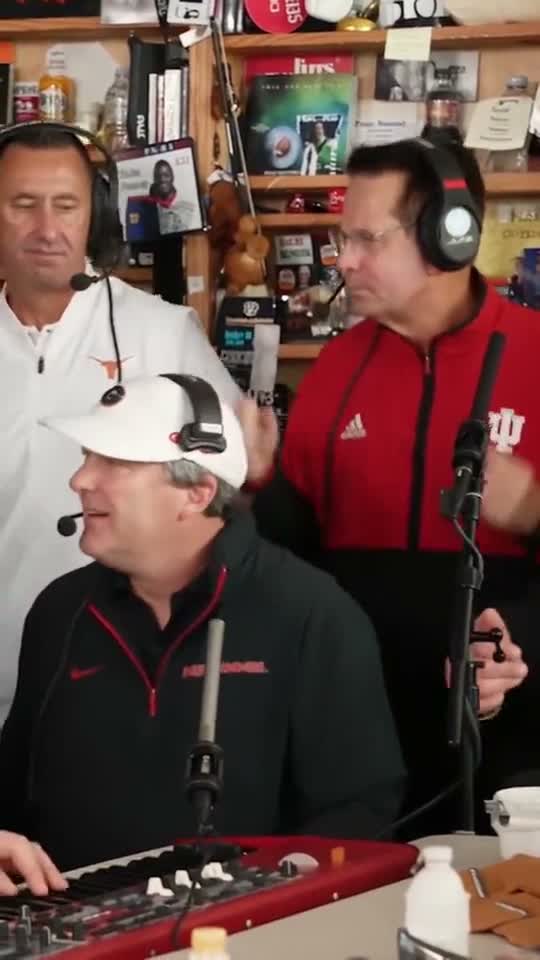
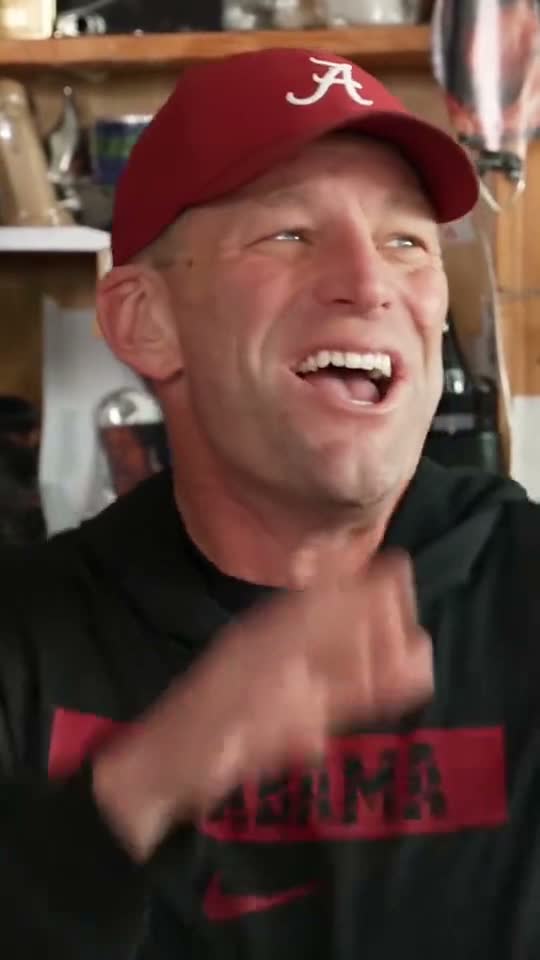
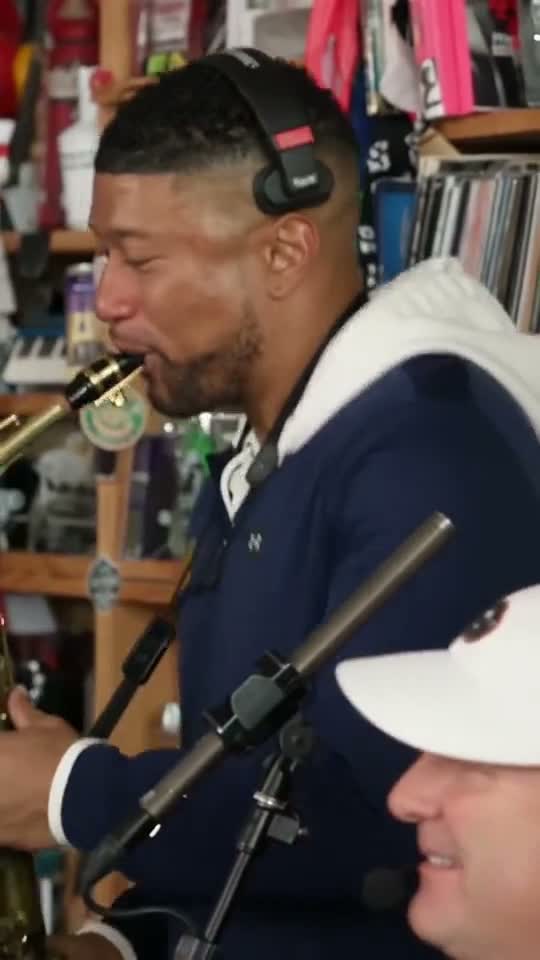
Frames from the supplied reference clip, not verified ReelMorph output. Use them to inspect shot roles; they do not establish the depicted people’s identities or endorsement.
Prepare portraits and assign the band
Use one clear portrait per person you want to control, within your chosen tool’s image limit. For a one-photo version, assign that photo only to the lead and describe the other adults as fictional musicians. For a full cast, make a simple role list: lead, saxophone, keyboard, backing left and backing right. Keep that order in every generation. In the reference group shot, the keyboard player is in the foreground, with backing left behind them on the viewer’s left and backing right on the viewer’s right. The lead and saxophonist each have a separate close-up.
The lead needs visible eyes, mouth and shoulders. Use even light and avoid a group photo, heavy face filters or a microphone already covering the lips. Keep the saxophonist’s face equally clear when you supply that role. Choose clothing you want to retain, with unobtrusive patterns. Use a motion reference you are allowed to process; access to a public post alone is not a reuse license.
Generate one passage or join separate shots
- Trim your permitted reference to the intended story. Inspect the cut points and decide the output ratio before generating; 9:16 suits a vertical close-up, while a wider frame gives the ensemble more space.
- Use a model that supports your required identity images and, if needed, a motion reference. Check the current duration and reference limits in that tool.
- Try a single pass when the sequence fits its limits. If the lead or instrument repeatedly fails, generate those shots separately instead of rerunning the entire concert.
- For a longer version, split at a deliberate camera cut. Reuse the same portraits, role map, clothing and room description in both parts. Do not rely on a universal 13 + 6 split: the useful join depends on your edit.
- Assemble the accepted takes, trim duplicated gestures and compare the frames on both sides of each join. Add sound only after the visual sequence is settled.
Write a prompt that separates identity from action
Specify who each image controls, then describe action order, framing, continuity and sound. Ask for the lead’s expression rather than naming a famous person’s voice. This adaptable example is a public teaching prompt, not the generator’s private recipe:
Film a short office concert with the adult in portrait A as the lead vocalist. Keep that face and outfit throughout. Invent distinct adult supporting musicians on keyboard, saxophone and backing vocals. Begin with the group reacting to the rhythm, show the lead breaking into a joyful laugh, give the saxophone a brief solo shot, then return to the group. Preserve the same room, headphones and instrument positions across cuts. Use the authorized motion reference for gestures, not for performers’ identities. Keep hands anatomically plausible and instruments separate from faces. Produce silent visuals for later audio editing. Avoid duplicated faces, identity swaps, extra musicians, subtitles and readable logos.
For multiple portraits, replace the invented-role sentence with your explicit role map. For a separate sax shot, repeat the sax identity and outfit; do not assume the model remembers a previous request.
Fix the errors that break the performance
- The lead becomes the keyboard player: identify the solo close-up role explicitly and keep the supporting role descriptions distinct.
- The face changes during the laugh: choose a clearer, less filtered portrait; reduce the head turn or shorten the close-up.
- The saxophone merges with hands: simplify the action and use a separate steady instrument shot.
- The cast changes after a join: repeat the role map and use accepted stills as continuity references where supported.
- Everybody sings through an instrumental passage: define who performs in each shot and keep other mouths relaxed.
- The ending stops mid-gesture: leave a short settled reaction at the end instead of filling every frame with movement.
Edit, review sound and publish clearly
Watch at normal speed, muted, and frame by frame around the close-up and saxophone. Check teeth, fingers, face continuity, wardrobe and visible branding. Export an MP4, then watch the exported file rather than relying only on the editor preview.
Use your own recording, licensed music or a publishing-platform track available for your intended use. Adding a song does not automatically align lips or clear rights in the footage. Keep consent records for identifiable people and check the destination platform’s current AI labeling controls. Clearly describe the result as AI-generated; avoid suggesting a real performance or endorsement.
Tiny Desk AI FAQ
Can I make Tiny Desk AI from one photo?
Yes, when the tool supports a portrait as identity input. Cast the person as the lead and let the other roles be fictional. A group photo is less reliable for assigning separate roles.
Is every Tiny Desk AI video 19 seconds?
No. The duration belongs to the edit. The supplied reference here is 15 seconds; a longer sequence can be assembled from separate shots if your tool cannot generate it in one pass.
What song is associated with the trend?
Outstanding by The Gap Band, performed by Charlie Wilson in his NPR Tiny Desk concert. That association does not provide a license to reuse the recording.
Do I need a particular app or template?
No. Use a compatible image/video model and an editor. A face-overlay template and a newly generated performance can behave differently; inspect role control, duration and export options before choosing.
A convincing Tiny Desk AI edit keeps the lead recognizable and gives each shot a purpose. Review those details before spending time on the soundtrack. For an optional shortcut, ReelMorph’s preset requires a lead portrait, with optional slots for saxophone, keys, backing left and backing right (from the viewer’s perspective). AI creates fictional bandmates for empty roles. It uses the supplied 15-second reference, defaults to 9:16 and requests original band audio; it does not assemble a 19-second result. Review the actual output for identity fidelity and sound.
Open the Tiny Desk AI generator →